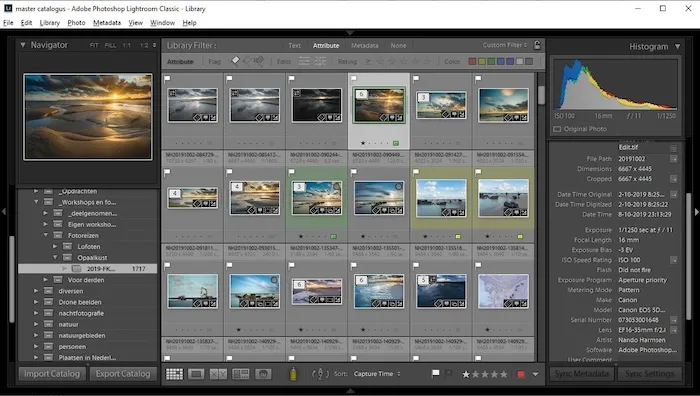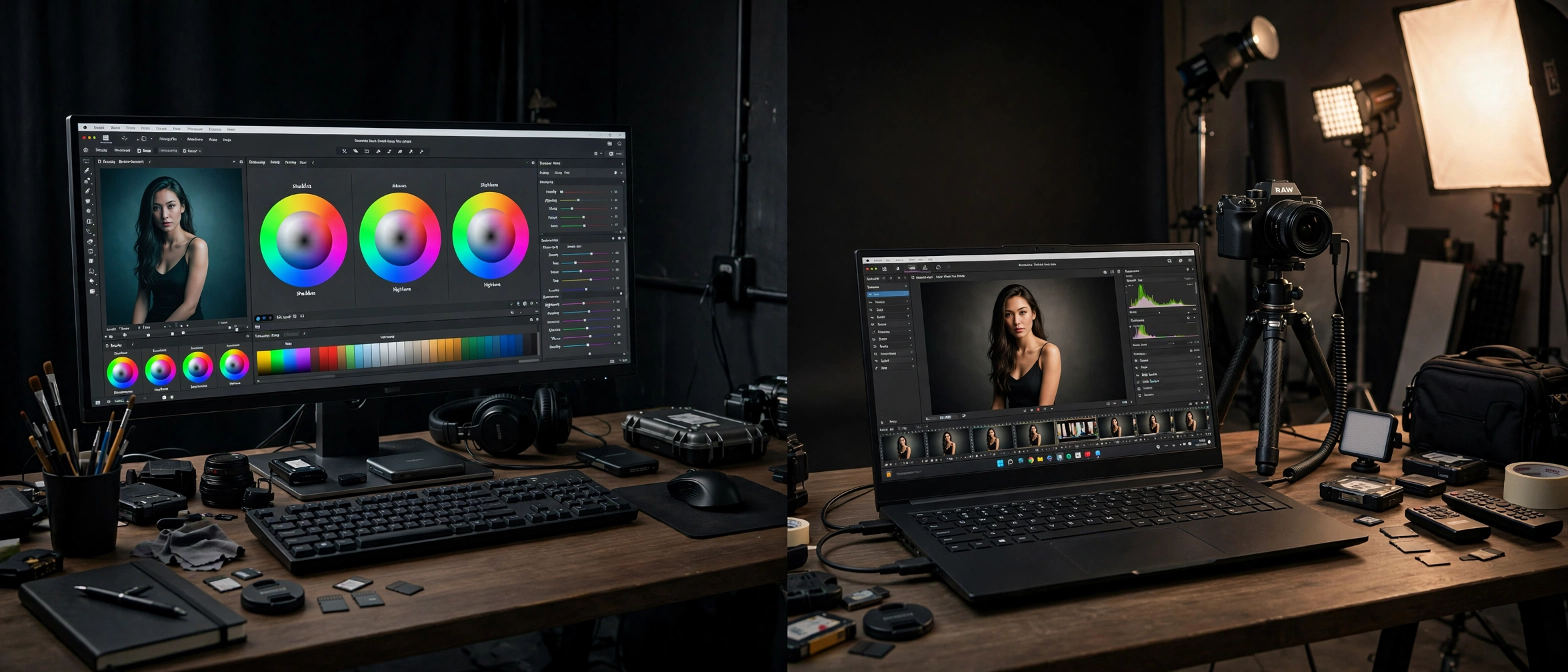
Lightroom vs Capture One (2026): Which Photo Editor Wins?
Ask ten working photographers which editor they use and you will start an argument: half swear by Lightroom, the other half would never give up Capture One. The lightroom vs capture one debate never settles because the two programs are built for different photographers doing different jobs. One rules cloud-connected, high-volume editing inside the Adobe ecosystem. The other is the studio standard for tethered shooting and precision color grading — and the rare pro app you can still buy outright. This 2026 guide compares them honestly across pricing, tethering, color tools, AI features, and preset migration.
Go Premium: 50 Pro Presets for Just $9
50 premium XMP presets · 10 collections · Instant download · Works with Lightroom mobile & desktop
Get the Bundle — $9Lightroom vs Capture One: Quick Verdict
- Choose Lightroom for cloud sync across phone, tablet, and desktop, seamless Photoshop integration, and one subscription covering the whole Adobe photo workflow.
- Choose Capture One for tethered studio shooting, precise color grading, self-contained Sessions, or owning your software with a perpetual license instead of renting it.
- No fake overall winner. A wedding photographer editing 4,000 frames and a fashion photographer shooting tethered need different tools — each app wins its own game.
Lightroom vs Capture One: At a Glance
| Lightroom (cloud + Classic) | Capture One Pro | |
|---|---|---|
| Best for | High-volume editing, cloud/mobile workflow, Adobe users | Tethered studio work, commercial, fashion, product |
| Price | Subscription only (~$19.99/mo Photography Plan with 1TB + Photoshop) | Subscription (~$18/mo) or perpetual license (~$349 one-time) |
| Tethering | Functional but basic | Best in class |
| Color tools | 4-way wheels, HSL/Color Mixer, mask-based editing | 3-way wheels, 8-channel Advanced Color Editor, up to 16 adjustment layers |
| AI masking | Subject, sky, people, objects, background — slightly ahead on tricky edges | Subject, background, people, clothing — close to parity in 2026 |
| Organization | Catalog-based (Classic) or cloud albums with full sync | Sessions (self-contained job folders) or catalogs |
| Mobile | Full two-way sync; free app with premium features via plan | iPhone/iPad app with one-way sync; separate subscription |
| Ecosystem | Photoshop included, huge preset/plugin market | Largely standalone, smaller add-on market |
Pricing: $349 Perpetual License vs Subscription
Pricing is where the two philosophies split hardest, so here it is side by side (USD, approximate — always check the official sites, because prices change):
| Plan | What you pay | What you get | If you stop paying |
|---|---|---|---|
| Capture One Pro — perpetual | ~$349 one-time | The full desktop Pro app, yours to keep at that version (major new versions are paid upgrades) | Nothing changes — the app keeps working |
| Capture One Pro — subscription | ~$18/month (annual billing) | Always the latest version, plus feature updates as they ship | The application stops opening |
| Adobe Photography Plan | ~$19.99/month | Lightroom + Lightroom Classic + Photoshop + 1TB cloud storage | Apps open, but Develop and Map modules are disabled |
| Lightroom mobile | Free to install | Core editing free; premium features unlock with a subscription | Premium features lock; free tools keep working |
Two honest takeaways. First, Capture One is the only one of the two you can buy outright — if you refuse to rent software, that alone may decide it. Second, Adobe’s plan bundles Photoshop and 1TB of cloud storage, so compare total value, not just the monthly number. Over three years, the perpetual license is usually the cheapest way to run Capture One.
Tethered Shooting: Capture One’s Home Turf
If you shoot with your camera connected directly to a computer — studio portraits, fashion, product, food photography — this section matters most, because tethering is Capture One’s biggest, clearest win.
Capture One’s tethered capture is widely considered the best in the business: broad camera support, fast and stable live view with genuinely useful focus aids, and Capture One Live, which lets clients or art directors review shots remotely in a browser while you keep shooting.
Lightroom (and Lightroom Classic) does offer tethered capture, with native support for Canon, Nikon, Sony, Fujifilm, and Leica cameras — but it is functional rather than exceptional. If tethered shooting is your daily reality, Capture One wins this round without a contest. If you almost never tether, this advantage is irrelevant to you — weight it accordingly.
Color Grading and RAW Processing
Both editors process RAW files superbly, and honest reviewers agree on one thing: neither has a universal image-quality advantage across all cameras and files. The difference is in control, not quality.
Capture One gives color-obsessed editors deeper tools: an 8-channel Advanced Color Editor for surgical hue adjustments, 3-way color wheels, and — the big one — up to 16 adjustment layers, each carrying a full set of tools.
Lightroom answers with 4-way color wheels and the HSL/Color Mixer panel, plus a mask system where you add, subtract, and intersect masks (subject, sky, people, background, objects) to build precise selections. Lightroom still has no layers — a genuine structural difference — but the mask workflow narrows the practical gap more than layer purists admit.
One practical note for Fujifilm shooters: Lightroom’s AI Denoise works on all supported RAW files, while Capture One’s Enhanced Denoise is limited to Bayer-sensor files — worth knowing if you shoot X-Trans.
AI Features in 2026
The AI gap that once separated the two has mostly closed. Both now offer AI subject/background/people masking, AI-assisted culling, and AI noise reduction — reviewers put them at near parity, with Lightroom slightly ahead on tricky subject edges.
Where they still differ is philosophy: Adobe pushes generative tools across its ecosystem (like Generative Remove inside Lightroom), while Capture One focuses its AI on capture and review workflows. Pick based on which kind of AI actually saves you time.
Organization: Catalogs vs Sessions
Lightroom Classic is built around catalogs: one database for your whole library, with keywording and smart collections — ideal for tens of thousands of images. The cloud Lightroom app trades the catalog for albums that sync everywhere.
Capture One offers a choice: catalogs like Lightroom’s, or Sessions — self-contained folders where each job keeps its own images, settings, and outputs together. Studio and commercial photographers love Sessions because a job can be archived or handed off as one tidy package with no database to maintain.
Mobile and Cloud: Lightroom’s Clear Lead
This is the section most comparisons skip — and it matters enormously if you edit on your phone. Lightroom’s mobile story is in a different league: the free mobile app edits RAW files, premium features unlock with your plan, and everything syncs two ways between phone, tablet, and desktop.
Capture One does have iPhone and iPad apps, but they are companions, not replacements: one-way sync and a separate subscription. If your editing life happens mostly on a phone — as it does for most of our readers — Lightroom is the practical pick, and it is not close. For a phone-first photographer’s full comparison of mobile options, see our Lightroom vs CapCut (2026) breakdown.
Switching from Lightroom to Capture One: Can You Migrate Your Presets?
This is the question that stops many Lightroom users from switching, so here is the honest answer: there is no official one-click import. Lightroom presets (.xmp files) do not load directly as Capture One Styles — the two systems describe edits differently.
But your looks are not trapped. Here are the realistic paths, from easiest to most work:
- Check your preset maker first. Many popular preset creators sell Capture One versions of the same packs. If yours does, rebuying (or a discounted crossgrade) is the fastest route to identical looks.
- Rebuild your signature looks manually. This sounds painful, but Capture One’s color tools are deeper than Lightroom’s — most looks are rebuildable in an afternoon, and editors often end up with a better version because of the Advanced Color Editor and layers.
- Carry your organization across with XMP. Ratings, color labels, and keywords stored in XMP sidecars partially transfer between catalogs, so your culling work is not entirely lost even though the edits themselves do not translate.
- Third-party converters exist — verify before trusting. A few utilities claim to convert Lightroom presets to Capture One Styles. Results vary wildly by preset complexity; always test converted styles on several of your own images before committing a whole library to them.
If you have built a large personal preset collection, budget a weekend for migration, not an hour. And if presets are central to your workflow, browse our free Lightroom presets collection — sometimes the easiest migration is realizing your favorite looks already exist where you are.
Who Should Choose Which?
- Choose Lightroom if: you edit across phone, tablet, and desktop; you want Photoshop in the same subscription; you manage huge catalogs (weddings, events, travel); you rely on presets and the Adobe plugin ecosystem; or you prefer one subscription covering everything.
- Choose Capture One if: you shoot tethered in a studio; color grading precision is your craft (fashion, commercial, product); you love the Sessions workflow; or you want to own your software with the ~$349 perpetual license and stop paying monthly.
- Use both if: you are a hybrid shooter — tether studio sessions in Capture One, then manage and deliver everything else in Lightroom. Many working pros quietly do exactly this.
Still deciding between Adobe’s own apps instead? Our Lightroom vs Photoshop (2026) guide breaks down when each Adobe tool wins.
Lightroom vs Capture One: FAQs
Which is better, Lightroom or Capture One?
Neither wins overall. Lightroom is better for cloud/mobile workflows, high-volume catalogs, and Adobe ecosystem integration. Capture One is better for tethered studio shooting, precise color grading, and photographers who want a perpetual license.
Can I use my Lightroom presets in Capture One?
Not directly — there is no official importer that turns Lightroom presets into Capture One Styles. Your options: buy Capture One versions from the same preset maker, rebuild the looks manually (usually an afternoon’s work per signature look), or test a third-party converter carefully before trusting it.
Is Capture One really better for tethering?
Yes — the least controversial claim in the whole comparison. Capture One’s tethered capture is faster, more stable, supports more cameras, and adds Live View focus aids plus Capture One Live for remote client review. Lightroom’s tethering works, but it is basic by comparison.
Can I buy Capture One outright instead of subscribing?
Yes. Capture One Pro offers a perpetual license for around $349 (one-time, USD) — you keep that version forever. The subscription (around $18/month) gets you every new version as it ships. Lightroom has no perpetual option; it is subscription-only.
Can I edit RAW photos on Lightroom mobile?
Yes. The free Lightroom mobile app opens and edits RAW files (including DNG); a subscription unlocks premium features like selective masking and extra cloud storage. It is one of the strongest reasons phone-first photographers stay with Lightroom.
Is Capture One harder to learn than Lightroom?
A little, at first — especially Sessions and the deeper color tools. Lightroom is more beginner-friendly, with a gentler learning curve and far more tutorials. Most photographers feel comfortable in either within a few weeks of daily use.
The Bottom Line
The lightroom vs capture one choice comes down to one question: where do your photos live? If they live in the cloud, on your phone, and inside the Adobe ecosystem, Lightroom is your editor. If they live on a tethered workstation in a studio, graded with surgical color precision, Capture One is your editor. Either way, download the free trials, run the same RAW files through both, and let your own eyes cast the deciding vote. For an independent second opinion, this detailed 2026 Capture One vs Lightroom head-to-head reaches similar conclusions with its own test images.