Free Vintage Lightroom Presets (2026): 15 Looks + Download
Free vintage Lightroom presets are the fastest way to give your photos that warm, nostalgic film look — faded tones, soft grain, and creamy colors that make any shot feel like it was captured decades ago. In this guide you get our free Vintage Film preset pack (6 real .xmp presets you can download below, no signup), plus 15 vintage looks explained with the settings behind each one, so you can recreate any of them yourself. Everything works in Adobe Lightroom Mobile and Desktop in 2026.
Go Premium: 50 Pro Presets for Just $9
50 premium XMP presets · 10 collections · Instant download · Works with Lightroom mobile & desktop
Get the Bundle — $9What Makes a Preset Look “Vintage”?
Before downloading anything, it helps to know what you are actually applying. A vintage look is not one slider — it is a combination of small changes that mimic old 35mm film:
- Film grain — a fine texture layered over the image, usually set between 25 and 40.
- Lifted blacks — the darkest parts of the photo are raised through the tone curve, creating that soft, faded-film feel.
- Warm color grading — highlights tinted toward amber or gold, shadows toward green or teal, like aged film stock.
- Reduced contrast and clarity — a slightly soft, dreamy rendering instead of a punchy digital look.
- Vignette — darkened corners that draw the eye to the center, common in old lenses.
Every preset in this guide is built from these ingredients in different proportions. Once you understand them, you can tweak any preset to fit your photo instead of accepting it as-is.
Free Vintage Lightroom Presets Download (2026)
Our free Vintage Film preset pack includes 6 .xmp presets that install on both Lightroom Mobile and Desktop. No email, no signup — the ZIP is hosted right here:
- Warm Retro — golden warmth with soft contrast. Best for portraits, sunsets, and travel shots.
- Faded 70s — lifted blacks and muted tones. Best for street photography and lifestyle shots.
- Polaroid Pop — instant-film punch with gentle highlights. Best for casual everyday snaps.
- Sepia Soul — classic brown monochrome. Best for timeless portraits and old-building shots.
- Cool Slide — cool-toned slide-film rendering. Best for architecture and moody travel photos.
- Grain Heavy — pronounced film grain over warm tones. Best for low-light and night scenes.
6 .xmp presets for Lightroom Mobile & Desktop — free, no signup.
Want more free styles beyond vintage? Browse our full free Lightroom presets collection — cinematic, black & white, golden hour, and more.
15 Vintage Lightroom Preset Looks to Try in 2026
Here are 15 vintage styles worth knowing. The six marked with ★ are in our free pack above — the rest include the key settings so you can build them yourself in Lightroom’s free tools.
1. Warm Retro 70s ★
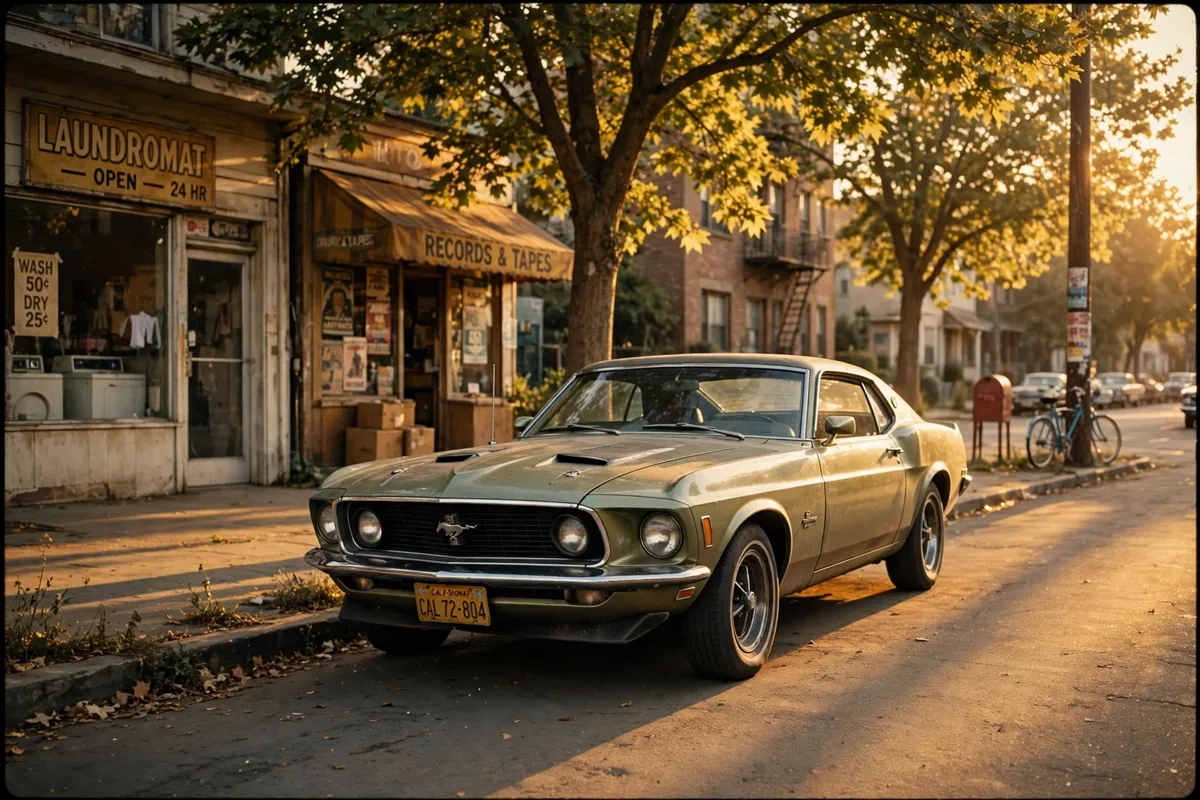
The signature vintage look: amber highlights, soft contrast, gentle grain. Works on almost any daylight photo. If faces look dull after applying it, raise Exposure by +0.2 to +0.4.
2. Faded Film ★
Lifted blacks and washed-out shadows give photos the feel of a print left in the sun. Ideal for beach shots, road trips, and lifestyle content.
3. Polaroid Instant ★
Mimics instant film: slightly milky whites, punchy midtones, soft vignette. Great for casual portraits and party photos.
4. Sepia Soul ★
A true brown monochrome — not just desaturated, but toned warm. Portraits of older subjects and historic buildings look especially timeless.
5. Cool Slide Film ★
Based on cool slide-film stock: clean blues, crisp whites, restrained warmth. Suits modern architecture and overcast travel scenes.
6. Grain-Heavy Film ★
Deliberately obvious grain over warm tones. Hides noise in high-ISO night shots and gives digital photos an analog soul.
7. Black & White Film
A filmic monochrome with grain around 30 and lifted blacks so shadows never go pure black. Key settings: B&W mix adjusted per channel, Grain 30, tone curve blacks lifted slightly.
8. Cross-Processed
The edgy lab-accident look: green-tinted shadows and magenta highlights. Key settings: tone curve — pull green up in shadows, red up in highlights; add a light vignette.
9. Expired Film
Unpredictable color shifts like shooting on long-expired film: muddy greens, weak reds. Key settings: shift green hue toward yellow, drop overall saturation 15–20.
10. Golden Vintage Hour
Warm highlights with a soft glow, as if every photo was shot at sunset. Key settings: warm white balance (+10 to +15 temp), highlights tinted amber in Color Grading, slight negative dehaze.
11. Noir Film Contrast
High-contrast black and white with heavy grain — the classic detective-movie frame. Key settings: strong S-curve, Grain 40+, deep vignette.
12. Rustic Brown Tones
Everything leans toward warm browns: cozy, autumnal, and flattering for indoor shots. Key settings: orange and yellow saturation up slightly, aqua saturation down.
13. Pastel Film
Soft, desaturated pastels with low contrast — the dreamy vintage feed aesthetic. Key settings: reduce vibrance, lift blacks, pastel-leaning HSL tweaks.
14. Teal-Orange Cinema Vintage
The blockbuster grade aged with grain: teal shadows, orange skin tones. Key settings: Color Grading — teal in shadows, orange in highlights; Grain 25.
15. Soft Cream Wedding
Creamy whites and gentle warmth made for wedding and portrait work. Key settings: highlights warmed, whites softened, skin-tone oranges kept natural.
How to Install Free Presets on Lightroom Mobile
The presets in our pack are .xmp files, which the Lightroom mobile app can import directly:
- Download the ZIP above and unzip it on your phone (use the Files app on iPhone or any file manager on Android).
- Open Lightroom and open any photo.
- Tap Presets at the bottom of the screen.
- Tap the three dots (⋯) in the top-right of the Presets panel, then Import Presets.
- Select the .xmp files — they now appear under Your Presets, ready to use on any photo.
For a longer walkthrough with screenshots, see our Lightroom install guide.
How to Install Presets on Lightroom Desktop
- Unzip the downloaded pack on your computer.
- In Lightroom Classic, go to Edit > Preferences > Presets and click Show Lightroom Develop Presets.
- Copy the .xmp files into the Settings folder that opens.
- Restart Lightroom — the presets appear in the Presets panel under User Presets.
5 Tips for Authentic Vintage Edits
- Fix exposure first. Vintage looks sit best on balanced shots — if faded tones make a face look dull, raise Exposure slightly after applying the preset.
- Add grain last. Grain between 25 and 40 reads as film; above 50 it starts looking like noise.
- Lift blacks with the tone curve rather than the Blacks slider for a smoother faded-film fade.
- Warm the highlights with Color Grading (formerly Split Toning) — amber highlights are the fastest vintage cue.
- Protect skin tones. If faces turn muddy, pull back orange saturation in the HSL panel until skin looks natural again.
Get the full bundle — 10 styles, install guide, lifetime updates — for just $9.
Frequently Asked Questions
Are these vintage Lightroom presets really free?
Yes. The 6-preset Vintage Film pack above is free to download with no email or signup required.
Do free vintage presets work on Lightroom Mobile?
Yes. The .xmp files in our pack import directly into the Lightroom mobile app via Presets → ⋯ → Import Presets, on both iPhone and Android.
What is the difference between .xmp and .dng presets?
An .xmp preset is a settings file that Lightroom imports directly. A .dng preset is a photo file carrying the settings — you copy the settings from it onto your photo. .xmp is the simpler, modern method.
Will vintage presets work on any photo?
They apply to any photo, but results vary with lighting and colors. If a preset looks off, adjust Exposure and White Balance after applying it — presets are starting points, not finished edits.
Why do my vintage edits look muddy instead of film-like?
Muddiness usually comes from lifted blacks plus low contrast flattening the whole image. Add a touch of Contrast or Dehaze back, and check that skin tones are not over-saturated in the orange channel.
Looking for more free styles? Check our Top 10 free Lightroom presets collection next.