
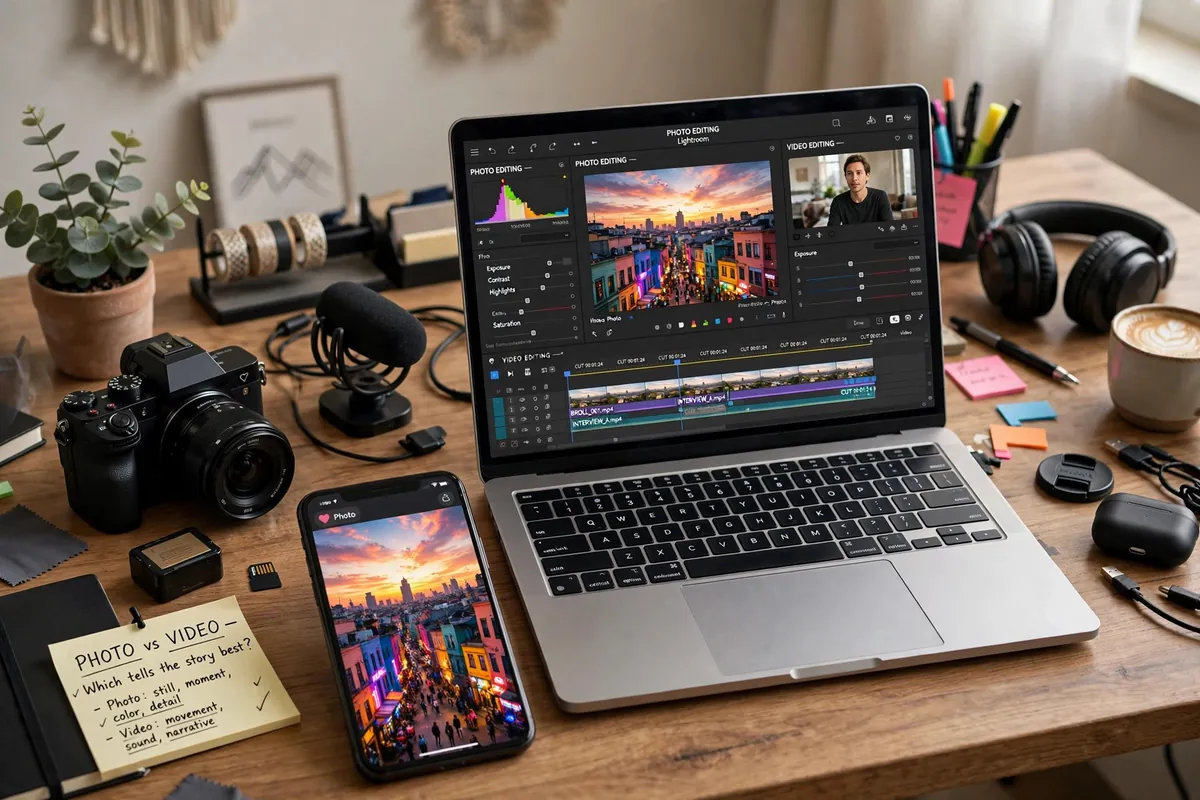
Lightroom vs CapCut (2026): Which Is Better for Photo & Video Editing?
If you’re trying to decide between Lightroom vs CapCut in 2026, here’s the honest answer up front: they aren’t really rivals — they’re built for different jobs. Adobe Lightroom is a photo editor made for photographers who want precise control over every image. CapCut is a video editor made for creators who want fast, eye-catching edits for TikTok, Instagram Reels, and YouTube Shorts. This guide compares them side by side — photo editing, video editing, ease of use, and pricing — so you can pick the right app for what you actually create. And if you make both photos and videos, you’ll see why so many creators simply use both.
Go Premium: 50 Pro Presets for Just $9
50 premium XMP presets · 10 collections · Instant download · Works with Lightroom mobile & desktop
Get the Bundle — $9Lightroom vs CapCut at a Glance
Short on time? Here’s the whole comparison in one table:
| Lightroom | CapCut | |
|---|---|---|
| Best for | Photo editing | Video editing |
| Photo tools | Advanced: RAW support, presets, selective edits, batch editing | Basic: filters and simple adjustments, fine for thumbnails |
| Video tools | Basic: trim clips and apply color presets on mobile | Advanced: multi-track timeline, transitions, keyframes, auto captions |
| Templates | One-tap photo presets | Video templates and effects library |
| AI features | AI masking, object removal | Auto captions, background removal, script-to-video |
| Ease of use | Takes time to learn | Beginner-friendly |
| Price | Free app; premium features via subscription | Free app; Pro tier unlocks extras |
| Works offline | Yes | Mostly, though some features need the internet |
What Lightroom Is Built For
Adobe Lightroom is a photo editing app built for photographers. Its core strength is precise, non-destructive editing: every adjustment you make can be changed or undone later without damaging the original image. It handles RAW files from cameras and phones, offers one-tap presets for a consistent look, and includes selective editing tools that let you adjust just the subject, the sky, or the background of a photo.
Its biggest workflow advantage is batch editing — copy your edits from one photo and paste them across dozens or hundreds, keeping a consistent style across a full shoot or an entire Instagram feed. If you want to understand the app from the ground up, read our guide on what Lightroom is and how it works.
What CapCut Is Built For
CapCut, developed by ByteDance (the company behind TikTok), is a video editor built for speed and social media. Its home screen is a timeline where you arrange clips, add transitions, overlay text, and sync everything to music. It ships with a large library of templates and effects, auto-generated captions, and one-tap tools like background removal — everything designed so a complete beginner can produce a polished short video in minutes.
It does include basic photo tools — filters and simple brightness and color adjustments — but photo editing is clearly a side feature here, not the main event.
Photo Editing: Lightroom Wins Clearly
In the Lightroom vs CapCut debate, photo editing isn’t close. Lightroom gives you full manual control: exposure, white balance, tone curves, color grading, sharpening, and noise reduction, plus selective masks that target specific parts of an image. Its preset system is a genuine advantage — apply a look in one tap, then fine-tune it to taste. And batch editing means you can keep that look consistent across every photo you post.
CapCut, by contrast, offers filters and basic sliders. That’s fine for a quick thumbnail or a video cover image, but you can’t do selective edits, work with RAW files properly, or keep your edits non-destructive. If photos are your priority, Lightroom is the better app — and our collection of free Lightroom presets shows how far a single tap can take you.
Winner: Lightroom. Two real-life examples: (1) A wedding photographer must deliver 300 consistently graded photos — Lightroom applies one preset across the whole batch and syncs every edit in minutes, while doing the same in CapCut’s photo tools would take all day. (2) You shot a sunset in RAW and the foreground is nearly black — Lightroom’s RAW engine recovers the shadow detail cleanly; CapCut works on compressed images, so the same push looks muddy.
Video Editing: CapCut Wins Clearly
Flip the question to video, and CapCut wins just as clearly. It is a real video editor: a multi-track timeline, transitions, animated text, keyframe animation, speed ramps, and music syncing. Its auto-caption feature generates subtitles in seconds — something short-form creators use on almost every video — and its template library lets you recreate trending formats instantly.
Lightroom’s video abilities are minimal by comparison. On mobile you can trim a clip and apply color presets to it, which is genuinely useful for matching a video’s look to your photos — but there is no timeline, no transitions, no text animation, and no audio tools. If video is your priority, CapCut is the obvious choice.
Winner: CapCut. Two real-life examples: (1) A creator needs a 30-second Reel with beat-synced cuts, auto-captions and a trending transition — CapCut finishes it in under ten minutes; Lightroom has no video timeline at all. (2) You filmed a talking-head video and want the background blurred with no green screen — CapCut’s auto cutout does it in one tap; Lightroom cannot touch video.
Ease of Use: CapCut Is Friendlier for Beginners
CapCut is designed for people who have never edited anything before. Templates do most of the heavy lifting, tools are labeled plainly, and you can learn the basics in an afternoon. Lightroom has a steeper learning curve — tools like tone curves and color grading take practice — but that depth is exactly what photographers value. Beginners shouldn’t be scared off, though: start with presets and auto adjustments, then learn one manual tool at a time.
Winner: CapCut on day one, Lightroom by month two. Two real-life examples: (1) A teenager making a first TikTok opens CapCut and exports a finished video in 15 minutes with zero tutorials. (2) A month later the same person wants a consistent moody look across their Instagram grid — that is when Lightroom’s learning curve pays off and CapCut’s filters start feeling limiting.
Free vs Paid: What Each App Costs
Both apps are free to download and genuinely usable without paying anything. Lightroom’s free version covers core photo editing; a subscription unlocks premium features such as cloud storage, advanced AI tools, and the desktop version. CapCut includes most editing features for free; CapCut Pro adds premium effects, templates, and cloud perks. Prices and exactly what’s included change over time and differ by country, so check the current listings in the Play Store or App Store before you decide. Neither app requires payment to start creating.
Winner: depends on your wallet. Two real-life examples: (1) A student with zero budget gets full video editing free in CapCut, while Lightroom’s premium features need a subscription. (2) A part-time photographer earning from shoots finds Lightroom’s Photography plan (around $10/month, Photoshop included) pays for itself with a single client gallery.
Which One Should You Choose?
- Choose Lightroom if: your main output is photos; you want a consistent look across your Instagram feed or portfolio; you shoot in RAW; you edit large batches of photos; you care about precise color and detail.
- Choose CapCut if: your main output is short-form video; you post on TikTok, Reels, or Shorts; you want templates, transitions, and auto captions; you need good results fast with minimal learning.
- Use both if: you’re a content creator who publishes photos and videos. Honestly, this is the most common real-world answer.
Using Both: A Simple Creator Workflow
Many creators get the best of both worlds with a simple two-app workflow that most comparison articles never mention:
- Edit your photos in Lightroom first. Apply a preset, fine-tune it, and export. Use the same preset on your video thumbnails and cover images so your whole profile matches.
- Edit your video in CapCut. Cut the clips, add transitions, drop in music, and generate captions.
- Polish the thumbnail in Lightroom. Export a still frame from CapCut (or shoot a separate photo), refine it in Lightroom, and upload it as your cover. A strong thumbnail is often the difference between a scroll-past and a tap.
This workflow takes a few extra minutes and makes your content look noticeably more professional than using either app alone.
Frequently Asked Questions
Is Lightroom better than CapCut for photo editing?
For photos, yes — Lightroom is a dedicated photo editor with professional color tools, RAW support and presets. CapCut is a video editor first; its photo tools are basic by comparison.
Can CapCut replace Lightroom?
For quick social-media touch-ups, CapCut is enough. For serious photo editing — accurate color, batch edits, RAW workflow — it cannot replace Lightroom.
Which is easier for beginners?
CapCut is simpler to pick up, with templates that do the work for you. Lightroom takes a little longer to learn but gives you far more control once you do.
Do both apps have free versions?
Yes, both offer free tiers. Lightroom’s free mobile version covers most editing needs; its premium features unlock with a subscription.
Which is better for Instagram photos?
Lightroom — its presets, selective edits and color grading are built exactly for polished still photos.
Can I use Lightroom-style presets in CapCut?
Not directly — CapCut uses its own filters and effects. For the true preset workflow, edit in Lightroom first, then bring the finished photo into CapCut if it’s part of a video.
Final Verdict
Lightroom vs CapCut isn’t really a fight — it’s a division of labor. Lightroom is the photographer’s tool: precise, deep, and built around still images. CapCut is the creator’s tool: fast, fun, and built around video. Match the app to what you make most, or do what thousands of creators already do and use both together.



2 Comments