Lightroom vs Snapseed (2026): Which Photo Editor Is Better?
When you search for the best free photo editor for your phone, one debate keeps coming up: lightroom vs snapseed. Both apps are free to start, both edit photos on your phone, and both have millions of loyal users — yet they are built for very different photographers. In this 2026 comparison, I will walk you through the real differences in price, RAW editing, batch editing, presets, and platforms, and give you an honest verdict for your specific situation. No fake winner, no hype — just the facts so you can decide for yourself.
Quick answer: Choose Snapseed if you want a completely free, simple editor for quick phone edits and social posts. Choose Lightroom if you shoot in RAW, edit lots of photos, want presets and batch editing, or edit on desktop too. Many photographers happily use both — they solve different problems.
Go Premium: 50 Pro Presets for Just $9
50 premium XMP presets · 10 collections · Instant download · Works with Lightroom mobile & desktop
Lightroom vs Snapseed: Side-by-Side Comparison
Here is the full picture at a glance before we go deeper into each point.
| Lightroom | Snapseed | |
|---|---|---|
| Price | Free core app; paid plans unlock premium tools | Completely free — no ads, no subscriptions, no in-app purchases |
| Platforms | Android, iOS, Windows, macOS, web | Android and iOS only |
| RAW editing | Full RAW workflow with camera and lens profiles | Can open and develop RAW/DNG files; exports as JPG/PNG |
| Batch editing | Yes — apply settings to hundreds of photos at once | No true batch editing; one photo at a time |
| Presets | Installable XMP/DNG presets (thousands available, including free packs) | Built-in “Looks”; looks can be shared with QR codes |
| Photo organization | Catalog, albums, flags, ratings | None |
| Selective editing | AI-powered masking (sky, subject), selective, healing, geometry | Selective adjustments, control points, healing, stacks |
| Export formats | JPG, PNG, TIFF, DNG | JPG, PNG |
| Learning curve | Moderate — grows with you | Easy — gesture-based, beginner-friendly |
| Developer | Adobe |
Free vs Premium: What You Will Actually Pay
Snapseed wins on price, and it is not close. Snapseed is developed by Google and is completely free — every tool, every filter, every feature is unlocked the moment you install it. There are no ads, no subscriptions, and no in-app purchases trying to upsell you.
Lightroom is free to start but works on a freemium model. The free mobile app gives you the core engine: Light, Color, and Detail tools, profiles, and cropping — honestly enough for most casual edits. The paid plans (roughly US$5/month for mobile-only premium, or around US$9.99/month for the Photography plan that also includes Photoshop — prices vary by region) unlock the features that matter to serious photographers: the healing brush, AI-powered masking, batch editing on mobile, perspective correction, and cloud syncing across devices.
Bottom line: if you never want to think about a subscription, Snapseed is the only true zero-cost option. If you are willing to pay for pro tools, Lightroom gives you far more for the money.
RAW Photo Editing
This is one of the most misunderstood parts of the lightroom vs snapseed debate. Both apps can handle RAW files — but not equally.
Lightroom offers a complete RAW workflow. You can shoot DNG on your phone (or import RAW files from your camera), apply camera and lens profiles, correct lens distortion, and develop the image non-destructively before exporting to JPG, PNG, TIFF, or DNG. For anyone shooting RAW seriously, this is the standard.
Snapseed can also open and develop RAW and DNG files with its RAW develop tool, which is genuinely impressive for a free app. The limitation is what happens after: Snapseed applies your edits and exports the result as a JPG or PNG, with less control over lens corrections and camera profiles. For quick RAW touch-ups on your phone, it works well. For a full RAW workflow, Lightroom is clearly ahead.
Editing Tools and Presets
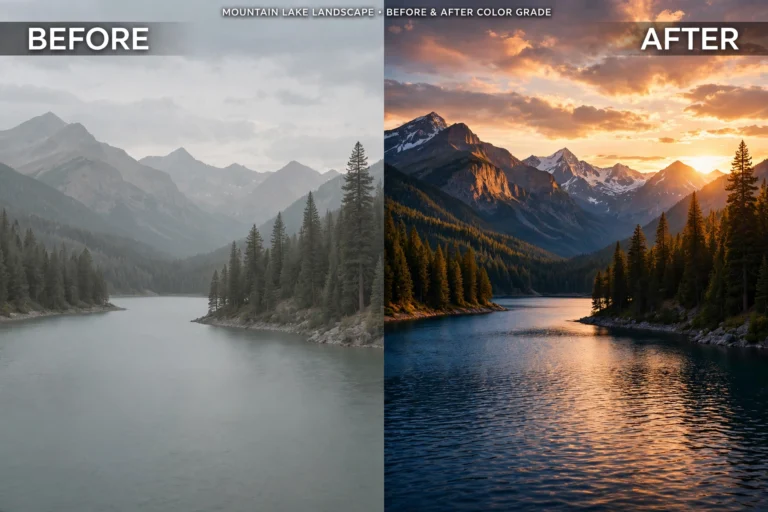
Lightroom gives you the deep, precise toolkit: exposure, contrast, curves, HSL color mixing, color grading, detail and noise reduction, lens corrections, geometry, AI masks that select skies and subjects automatically, and a healing brush for removing distractions. Presets are a huge part of the Lightroom experience — you can install thousands of XMP/DNG presets (including our free preset packs) and apply a complete look in one tap.
Snapseed’s toolkit is wider than most people expect for a free app: Tune Image, Details, Curves, White Balance, Crop, Perspective, Expand, Selective, Brush, Healing, HDR Scape, Grainy Film, Vintage, Noir, Lens Blur, Text, Vignette, and more. Editing is stack-based — every edit lives in a stack you can revisit, reorder, or undo, which is Snapseed’s version of non-destructive layers. Instead of installable presets, Snapseed has built-in “Looks” — and you can share any look with friends through QR codes, no installation needed.
Bottom line: Lightroom’s tools are deeper and more precise, especially for color. Snapseed’s tools are surprisingly capable for a free app and easier to use casually.
Batch Editing: Where Lightroom Pulls Ahead
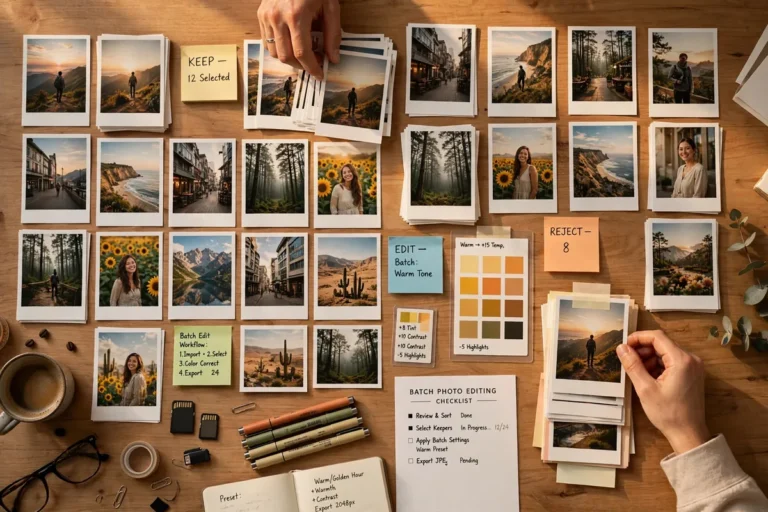
If you edit one photo at a time, this section does not matter. If you edit many photos — a wedding shoot, a product catalog, a week of Instagram posts — it matters enormously.
Lightroom lets you copy settings from one photo and paste them across hundreds, or apply a preset to an entire batch in seconds, keeping every image consistent. It is the single biggest reason working photographers choose Lightroom.
Snapseed has no true batch editing. You can copy a look and paste it onto another photo, but only one photo at a time — there is no way to process a whole set automatically. For casual use that is fine; for volume work it is a dealbreaker.
If batch editing is what you need, see our full walkthrough: How to Batch Edit in Lightroom.
Platforms, Sync, and Organization
Lightroom is an ecosystem: it runs on Android, iOS, Windows, macOS, and the web, and (with a paid plan) your photos and edits sync across all of them. Start editing on your phone, finish on your laptop. It also organizes your library with a catalog, albums, flags, and ratings — essential once you have thousands of photos.
Snapseed is mobile-only (Android and iOS). There is no desktop version, no web version, no cloud sync, and no photo organization — it edits the photos you open and that is it. If you only ever edit on your phone, none of this matters. If you want a seamless phone-to-desktop workflow, Lightroom is the only option of the two.
Which Is Better for You? An Honest Verdict
There is no single winner — it depends on how you shoot and edit. Pick the row that sounds like you:
Choose Snapseed if you:
- Want a 100% free editor with no subscriptions and no ads
- Mostly edit single photos for social media
- Prefer a simple, gesture-based interface you learn in minutes
- Do not need batch editing, syncing, or photo organization
Choose Lightroom if you:
- Shoot in RAW or work with high-resolution camera files
- Edit lots of photos and need batch editing and presets
- Want full control over color, tone, and detail
- Edit on desktop too, or want your edits synced across devices
- Are growing as a photographer and want a tool that grows with you
And here is the honest secret many photographers will tell you: you do not have to pick just one. A common workflow is developing a photo in Lightroom for precise color and RAW control, then opening it in Snapseed for a quick creative filter or text overlay. Both apps are free to start — try both and keep the one (or both) that fits your routine.
Lightroom vs Snapseed FAQs
Which is better, Lightroom or Snapseed?
Neither is universally better. Snapseed is better for casual, quick, completely free mobile edits. Lightroom is better for RAW photography, batch editing, presets, and professional workflows. Match the app to your needs, not to someone else’s verdict.
Can Snapseed replace Lightroom?
For casual editing — yes, easily. Snapseed handles everyday photo fixes, filters, and creative looks for free. It cannot replace Lightroom for professional workflows that need batch editing, catalogs, RAW profiles, desktop syncing, or installable presets.
Is Snapseed really free?
Yes. Snapseed is developed by Google and is completely free with no ads, no subscriptions, and no in-app purchases. Every feature is available from the moment you install it.
Does Lightroom work without a subscription?
Yes, partially. Lightroom’s free mobile app includes the core editing tools (Light, Color, Detail, profiles, cropping) with no payment. Premium features like the healing brush, AI masking, batch editing on mobile, and cloud sync require a paid plan.
Can Snapseed edit RAW photos?
Yes. Snapseed can open and develop RAW and DNG files with its RAW develop tool. The tradeoff is that it exports the finished image as a JPG or PNG, with less control over lens corrections and camera profiles than Lightroom’s full RAW workflow.
Final Thought
The lightroom vs snapseed question is really a question about you. If your editing life is quick phone edits shared the same day, Snapseed gives you professional-quality tools for exactly zero cost — and that is hard to argue with. If photography is your craft or your business, Lightroom’s RAW workflow, batch editing, presets, and cross-device sync will pay for themselves in saved time. Either way, the best editor is the one you will actually use — so install both, edit a few photos in each, and let your own workflow decide.
Still deciding between Adobe’s own apps? Read our Lightroom vs Photoshop (2026) comparison next.