How to Batch Edit in Lightroom (2026): Mobile, Desktop & Classic
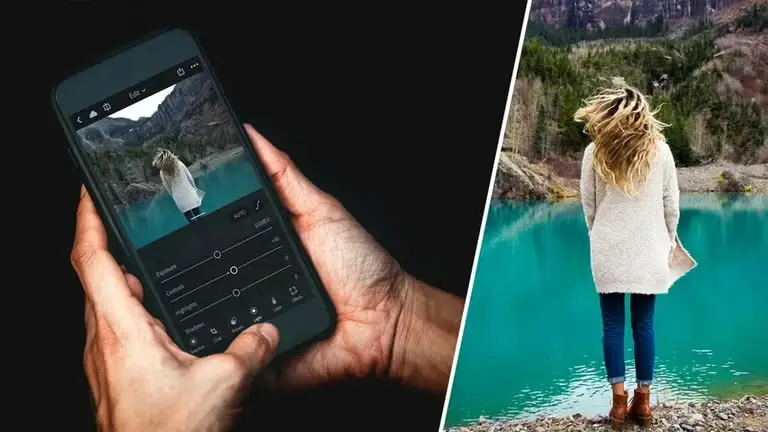
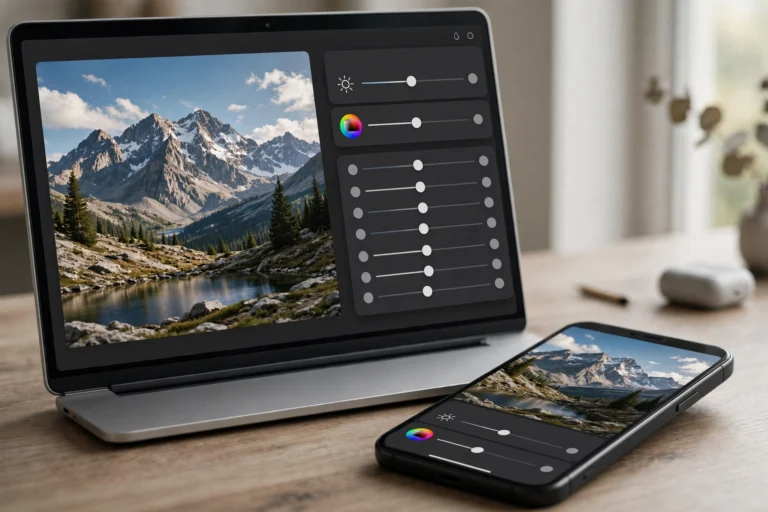
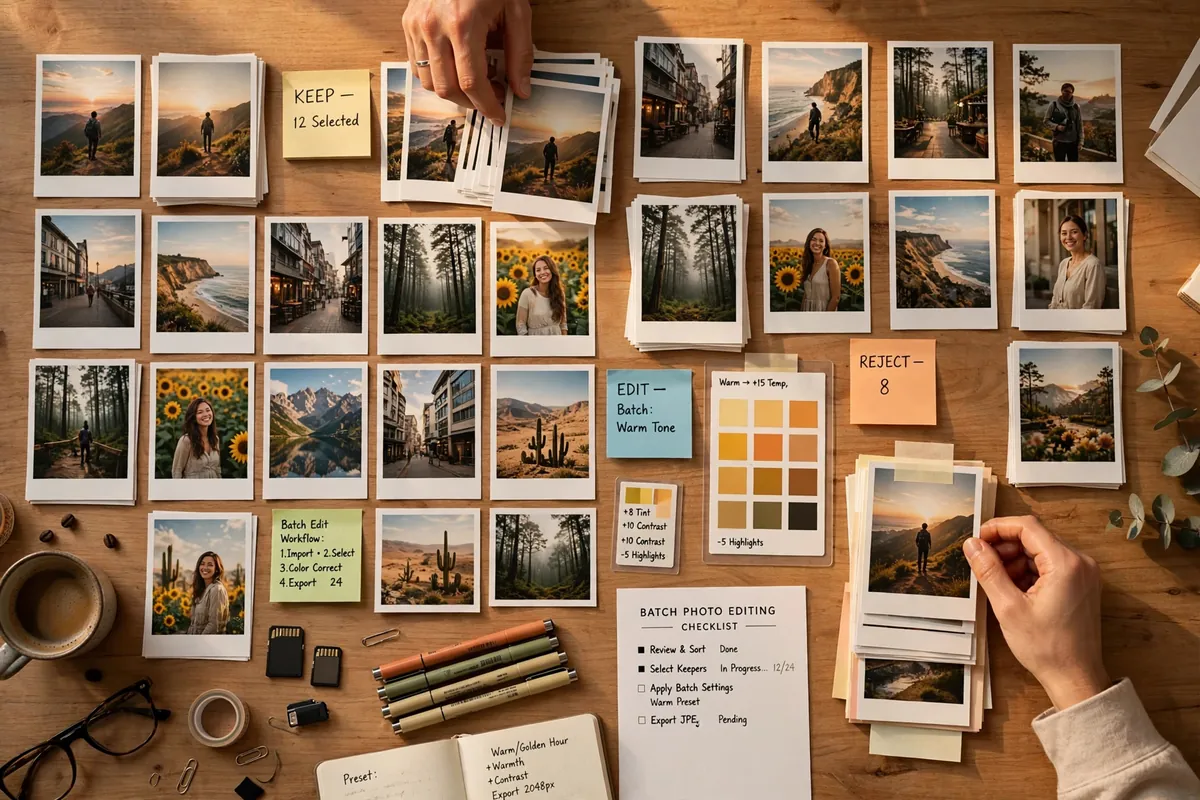
Coming home from a wedding, a trip, or a client shoot with 500 photos to edit is every photographer’s nightmare — unless you know how to batch edit in Lightroom. Batch editing lets you apply one finished edit to dozens or hundreds of photos in seconds, keeping every photo consistent while saving you hours of repetitive work. This 2026 guide covers the exact steps for Lightroom Mobile (Android and iPhone), the cloud-based Lightroom Desktop app, and Lightroom Classic, plus which settings are safe to batch and the mistakes that ruin batches. For Adobe’s own overview, see Adobe’s batch editing guide.
Go Premium: 50 Pro Presets for Just $9
50 premium XMP presets · 10 collections · Instant download · Works with Lightroom mobile & desktop
Get the Bundle — $9How to Batch Edit in Lightroom Mobile (Android & iPhone)
Lightroom Mobile has two batch methods: copy-paste settings and preset batching. Both are free — no subscription needed for either.
Method 1: Copy and paste settings
This is the most flexible method, because you can choose exactly which edits to carry over.
- Edit your hero shot first. Pick the best photo from the set — same lighting, same scene — and finish your full edit on it.
- Copy the settings. With that photo open, tap the three-dot menu in the top-right corner and choose Copy Settings. You will see a list of edit categories with quick options for All, Modified, or None. Choose which adjustments to include — for example, you might copy Exposure and Color but leave Crop unchecked.
- Select your targets. Go back to the grid view, long-press one photo to enter selection mode, then tap every photo you want the edits applied to.
- Paste. Tap the three-dot menu again and choose Paste Settings. Your edit is now applied to every selected photo.
Method 2: Apply a preset to multiple photos at once
- In the grid view, select all the photos you want to edit (long-press one, then tap the rest).
- Tap the Presets button at the bottom of the screen.
- Choose your preset. Lightroom applies it to every selected photo instantly.
This is the fastest path to a consistent look across a whole shoot — apply a preset to the first photo, fine-tune it, copy your refined settings, and paste them everywhere. If you need presets to start from, our free Lightroom presets collection covers every popular style.
The “Previous” shortcut
Working through photos one by one? Open a photo, tap the three-dot menu, and choose Previous. It instantly applies the edit settings from the last photo you worked on. When a whole series was shot in the same light, this is even faster than copy-paste.
Copy Paste Settings in Lightroom Desktop (Cloud App)
The cloud-based Lightroom app on Windows and Mac uses keyboard shortcuts that feel familiar if you have ever copied files on a computer.
- Edit one photo exactly the way you want it.
- Copy: with that photo selected, press Ctrl+C (Windows) or Cmd+C (Mac). To copy only some settings, press Ctrl+Shift+C / Cmd+Shift+C instead — a dialog lets you pick between All, Modified, Default, or None and tick individual categories.
- Select the rest: in the grid view, use Ctrl/Cmd+click for individual photos, Shift+click for a range, or Ctrl/Cmd+A to select everything.
- Paste: press Ctrl+V / Cmd+V to paste to every selected photo. If you are zoomed into a single photo (detail view), use Ctrl+Shift+V / Cmd+Shift+V — that forces the paste onto all selected photos, not just the one on screen.
One practical note: pasting while in the grid view is the safest habit, because you can see exactly which photos are highlighted and will receive the edits.
How to Batch Edit in Lightroom Classic (Sync Button)
Lightroom Classic — the catalog-based desktop version — has the most powerful batch tool of all: the Sync button in the Develop module.
Method 1: Sync Settings
- Finish your edit on the first photo of the series.
- Select source + targets in the filmstrip at the bottom: click your edited photo, then hold Shift and click the last photo in the range (or Ctrl/Cmd+click for non-adjacent photos). Your edited photo must be the active one.
- Click Sync at the bottom-right of the Develop panel — or press Ctrl+Shift+S / Cmd+Shift+S. (In the Library module the same button is called “Sync Settings”.)
- Choose your settings: the Synchronize Settings dialog lists every edit category. Click Check None first to clear everything, then tick only what you want to carry over, and click Synchronize.
Method 2: Auto Sync (live batch editing)
Next to the Sync button there is a small toggle switch. Flip it on to enable Auto Sync — now every adjustment you make applies to all selected photos in real time, with no dialog. It is perfect for fine-tuning exposure across a whole set. But be careful: it is easy to forget the switch is on and accidentally re-edit photos you had already finished. Make Auto Sync the first thing you check if photos look different than you left them.
Method 3: Paste from Previous
From the Settings menu, choose Paste Settings from Previous (Ctrl+Alt+V on Windows, Cmd+Opt+V on Mac) to apply your last edit to the current photo — the Classic equivalent of Mobile’s Previous button.
Classic also lets you batch at import: in the Import dialog, under Apply During Import, choose a Develop preset so every photo arrives pre-styled.
Which Settings Are Safe to Batch? (And Which to Skip)
This is where most beginners go wrong. Not every adjustment survives the jump between photos. Use this rule: batch global look adjustments, hand-check anything position- or photo-specific.
Safe to batch (when photos share the same lighting): white balance, exposure, tone curve, HSL and color grading, vibrance, lens profile correction, vignette, and your preset’s creative look.
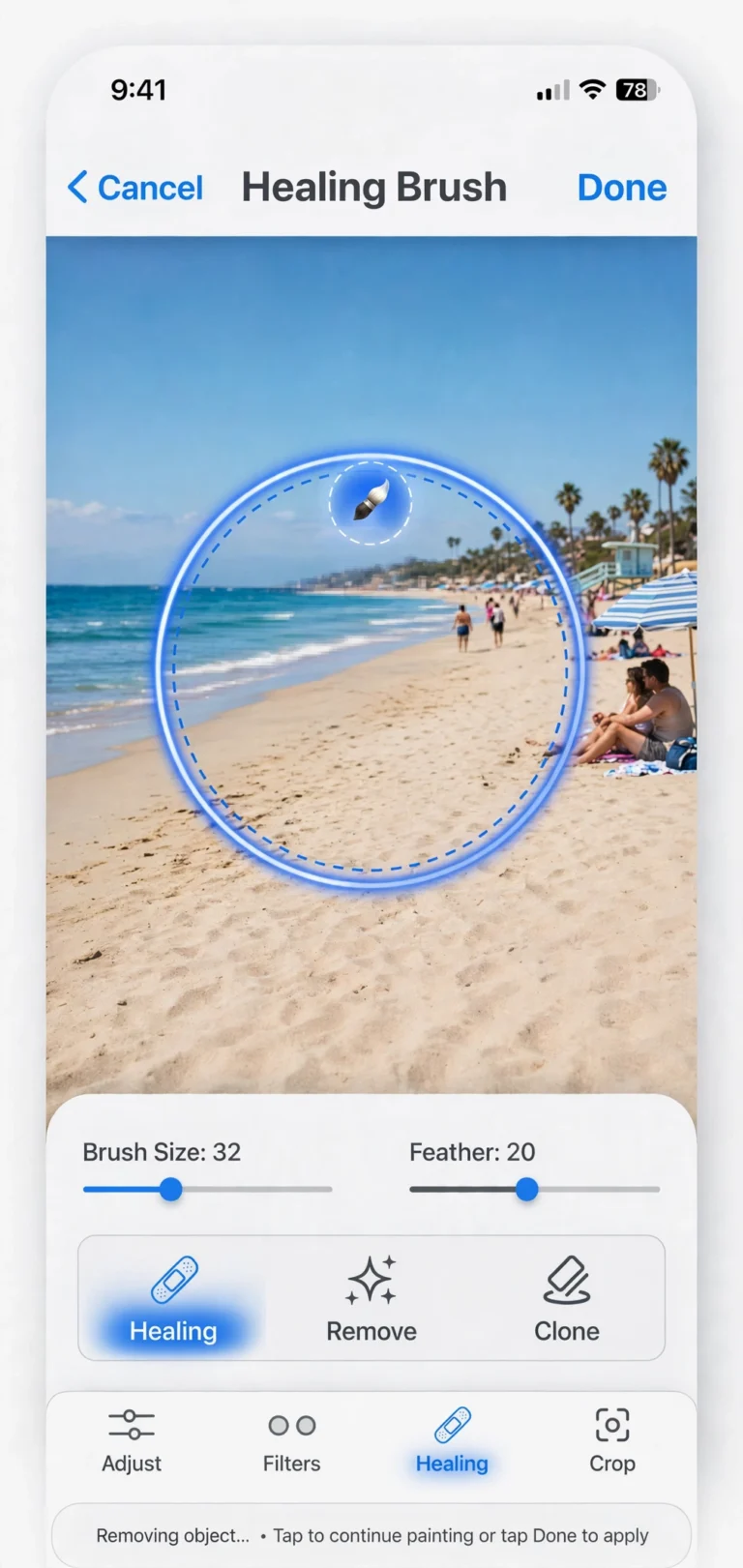
Skip or review carefully: crop (different framing on every shot), spot removal and healing (the spots are in different places), local adjustments and masks (they rarely land right on a different photo), sharpening and noise reduction (only safe if the ISO was the same), and AI tools like Denoise or Generative Remove (they work photo-by-photo and add heavy processing to a batch).
The golden rule: batch only photos shot in the same scene and light. A wedding ceremony, an indoor event, a beach sunset series — perfect. Mixing noon and dusk shots in one batch is how batches get ruined.
5 Batch-Editing Mistakes to Avoid
- Syncing white balance across different lighting. The single most common disaster: one batch across an indoor ceremony and outdoor portraits. Group photos by lighting first, then batch each group.
- Copying crops and spot removal. A crop that framed one photo perfectly will chop heads off in the next. Always uncheck Crop, Spot Removal, and local adjustments in the sync dialog.
- Leaving Auto Sync on. You select ten photos, tweak one slider “just to check something,” and all ten change. Turn Auto Sync off the moment you are done.
- Pasting a preset without adjusting exposure. Presets set a look, not exposure. After batching, skim the set and nudge exposure on any photo that is darker or brighter than the rest.
- Skipping the review pass. Batch editing gets you 90% of the way in seconds; the last 10% is a quick visual scan. Zoom into a few photos, check faces and horizons, and fix the outliers. Lightroom edits are non-destructive — the original files are never harmed, and any setting can be reset on any photo later.
FAQs: Batch Editing in Lightroom
Can I batch edit in Lightroom Mobile for free?
Yes. Copy/paste settings, the Previous button, and batch preset application are all available in the free Lightroom Mobile app on Android and iPhone. Only the AI tools (Generative Remove, Denoise) are premium-locked in the official app.
How many photos can I batch edit at once?
There is no hard limit in the desktop apps — wedding photographers routinely sync hundreds of photos. On mobile, very large selections can slow the app down, so break 200+ photo sets into smaller groups for a smoother experience.
Does batch editing change my original photos?
No. All Lightroom edits are non-destructive: the app stores your adjustments as instructions in the catalog, and your original files stay untouched. You can reset or change any setting on any photo at any time.
What is the difference between Sync and Copy/Paste?
They do the same job with different interfaces. Sync (Lightroom Classic) uses a dialog where you pick settings; copy/paste (Lightroom Mobile and the cloud Desktop app) uses the clipboard and keyboard shortcuts. Both let you choose which adjustments to carry over.
Why are my Lightroom exports blurry?
Aksar export settings ki waja se — resolution ya quality low set hoti hai. Full resolution pe export karo aur quality 90+ rakho.
Why does photo quality drop when exporting from Lightroom?
Compression ki waja se: JPG quality, resizing ya ghalat color space. Quality 85–100, sRGB aur full dimensions use karo.
What are the best export settings for Instagram?
1080px wide, sRGB color space, JPG quality 85–90, aur screen ke liye sharpening on. Ye Instagram pe sab se saaf result deta hai.
Final Thoughts
Learning how to batch edit in Lightroom is the single biggest time-saver in a photographer’s workflow. Edit one representative photo, sync or paste the look across the set, then spend your saved hours on the creative tweaks that actually matter. Start on mobile with copy/paste settings — it takes one minute to learn — and move up to Sync and Auto Sync in Classic when your galleries grow. Pair it with presets from our free presets hub, and if you have not installed the app yet, our step-by-step install guide will get the latest version running on your phone. One technique, hours saved, consistent galleries — that is the whole point of batch editing.