10+ Hidden Lightroom Features You Didn’t Know (2026)
If you only use Lightroom for the basic exposure sliders and a few presets, you are missing most of what the app can do. The hidden features of Lightroom — secret gestures, buried menu options, and powerful tools most tutorials never mention — can cut your editing time in half and fix problems you thought needed a second app. This guide covers 12+ hidden Lightroom features in the mobile app for 2026, plus three premium tools worth knowing about. Every trick below works in the current version of Lightroom Mobile on Android and iPhone. For the official documentation, see Adobe’s Lightroom Mobile guide.
Go Premium: 50 Pro Presets for Just $9
50 premium XMP presets · 10 collections · Instant download · Works with Lightroom mobile & desktop
Get the Bundle — $9The Hidden Features of Lightroom Most People Miss
These are the gestures and options hiding in plain sight. None of them require extra downloads — just a few taps in the app you already have.
1. Long-press to preview the original (instant before/after)
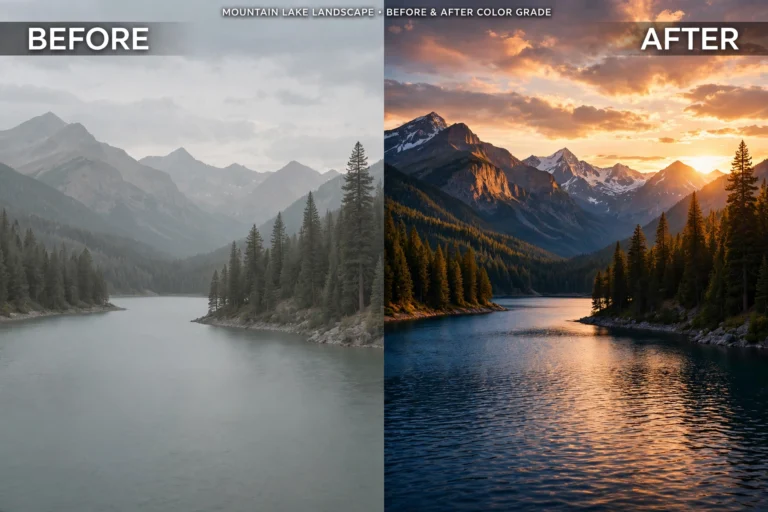
While editing, press and hold your finger anywhere on the photo. Lightroom instantly shows the unedited original; release to snap back to your edit. This is the fastest way to judge whether your changes actually improved the photo. Use it every few adjustments so you never over-edit — what looks good after five minutes of tweaking often looks worse than where you started.
2. Two-finger tap reveals clipping masks on sliders
Drag the Exposure, Highlights, Shadows, or Whites slider with one finger, then touch the photo with a second finger and hold. Lightroom shows a clipping mask: blown-out areas turn red, crushed blacks turn blue, so you know exactly how far to push. Do the same while adjusting Sharpening and you get a grayscale preview showing precisely where the sharpening is being applied. Desktop users get this with the Alt key — mobile users just never knew the gesture existed.
3. Double-tap the histogram to expand it
The small histogram at the top of the edit screen is more than a decoration. Double-tap it to expand it into a larger, live exposure meter. Even better: you can drag directly on different regions of the expanded histogram to adjust blacks, shadows, exposure, highlights, and whites without ever touching a slider. It is the quickest way to balance exposure on a phone screen.
4. Pinch the library grid to resize thumbnails
In the library grid, pinch in with two fingers to shrink the thumbnails and see more photos at once; pinch out to enlarge them. Combine this with the square-grid view option for a clean, uniform layout. When you are culling a 300-photo shoot, seeing 40 thumbnails at a time instead of 12 changes everything.
5. Copy and paste edit settings across photos
Edit one photo to perfection, tap the three-dot menu, choose Copy Settings, select your other photos, and choose Paste Settings. One edit becomes a whole consistent set in seconds. This is the core of batch editing on mobile, and it pairs perfectly with free Lightroom presets — apply a preset to the first photo, fine-tune it, then paste your refined version everywhere.
6. The “Previous” button applies your last edit instantly
In the edit screen menu you will find Previous. It copies the settings from the last photo you edited straight onto the current one. When you are working through a series shot in the same light, this is even faster than copy-paste: open the next photo, tap Previous, move on.
7. Swipe up or down to rate and flag photos
In the grid view, swipe up on a photo to mark it as a pick, swipe down to mark it rejected. You can cull hundreds of photos in minutes without opening a single menu. (On newer versions, star ratings moved behind the three-dot menu under Info and Rating, but the flag gestures still work.)
8. Store albums locally for true offline editing
Tap the three dots next to any album and turn on Store Locally. Your originals download to the device, so you can keep editing on a plane or with no signal. To save storage, there is a setting to download smaller Smart Previews instead of full originals — just know that AI tools like Generative Remove need the full-resolution file to work at their best.
9. Adjust colors by dragging directly on the photo
Go to Color, then Mix, and tap the target icon (a small circle). Now press and drag directly on any color in your photo: drag up to boost that color’s saturation, drag down to mute it. It is far more intuitive than guessing which of the eight color sliders to move — perfect for rescuing a dull sky or calming down overly orange skin tones.
10. Generative Remove erases anything (premium tool)
The Remove tool’s Generative Remove uses AI to erase people, wires, trash bins, and other distractions, then rebuilds the background realistically. It is one of the most impressive tools in the app — and in the official free version it is premium-only. On a premium build, it is unlocked, which is exactly why so many mobile photographers go that route.
11. AI Denoise rescues grainy night shots (premium tool)
Shot at high ISO at night and the photo is full of grain? Denoise in the Detail panel uses AI to remove noise while keeping real detail — dramatically better than the old manual Noise slider. Night photography, indoor events, and concerts become genuinely editable. Like Generative Remove, it is a premium feature in the official free app.
12. Add a watermark on export (premium tool)
In the export screen you can stamp a text or image watermark — your name or logo — onto every photo you share. Free-tier users can see the option but it stays locked. If you shoot for clients or post original work online, this is one of the most practical reasons creators upgrade.
3 Bonus Quick Tricks
Double-tap any slider to reset it
Pushed Clarity too far and want to start over? Double-tap the slider and it jumps back to its default value. No need to drag it back to zero by hand.
One-tap horizon straightening
Crooked horizon ruining a landscape? Open the Geometry tools and tap Auto. Lightroom analyzes the photo and straightens it in one tap — no manual rotation needed.
Search your library by what is in the photo
Type “beach”, “dog”, or “sunset” into the search bar and Lightroom finds matching photos automatically, even if you never tagged them. The app recognizes objects and scenes in your images, which makes finding one photo in a library of thousands almost instant.
Hidden Lightroom Features: FAQs (2026)
Are these hidden features available in the free version of Lightroom?
The gestures and workflow tricks (1–9 plus the bonus tricks) work in the free app. The AI tools — Generative Remove, Denoise — and export watermarks are premium features in the official app; a premium build unlocks them.
Do these tricks work on both Android and iPhone?
Yes. All the features and gestures above work in the current Lightroom Mobile on both platforms. Menu labels can differ slightly between versions, but the tools are the same.
What is the single biggest time-saver on this list?
Copy/paste settings (#5) combined with the Previous button (#6). Together they turn a 50-photo editing session into a ten-minute job — edit once, apply everywhere.
Where can I get free presets to use with these tricks?
Grab some from our free Lightroom presets collection, apply one to your first photo, fine-tune it with the tricks above, then paste your refined look across the whole set.
Final Thoughts
Most people use perhaps 20% of what Lightroom can do. Learning the hidden features of Lightroom — the gestures, the masks, the batch workflows — is what separates a quick phone edit from genuinely professional results. Start with the long-press preview and copy/paste settings; add the clipping-mask gesture next; and if you have not installed the app yet, follow our step-by-step install guide to get the latest version on Android. Which of these tricks did you not know? Try them on your next edit — you will feel the difference immediately.