
Lightroom vs Lightroom Classic (2026): Key Differences Explained
If you searched for lightroom vs lightroom classic, you have probably just discovered that Adobe sells two different photo editors with almost the same name — and now you need to know which one is right for you. Here is the short answer: Lightroom (the cloud version) and Lightroom Classic are both real Adobe products, both are still actively updated in 2026, and they edit photos with the same engine. But they store your photos differently, run on different devices, and suit different kinds of photographers. This guide compares them honestly, feature by feature, so you can pick the right one.
Why Does Adobe Have Two Lightrooms?
Back in 2017, Adobe split its photo editor in two. The traditional desktop program photographers had used for a decade was renamed Lightroom Classic, and a brand-new cloud-first app took the plain “Lightroom” name (it was called Lightroom CC for a few years). A persistent rumor says Classic is dying — it is not. Adobe keeps updating both apps; the 2026 updates brought new AI tools to Classic as well. Neither app is going away, so your choice should be based on how you work, not on which one you fear will disappear.
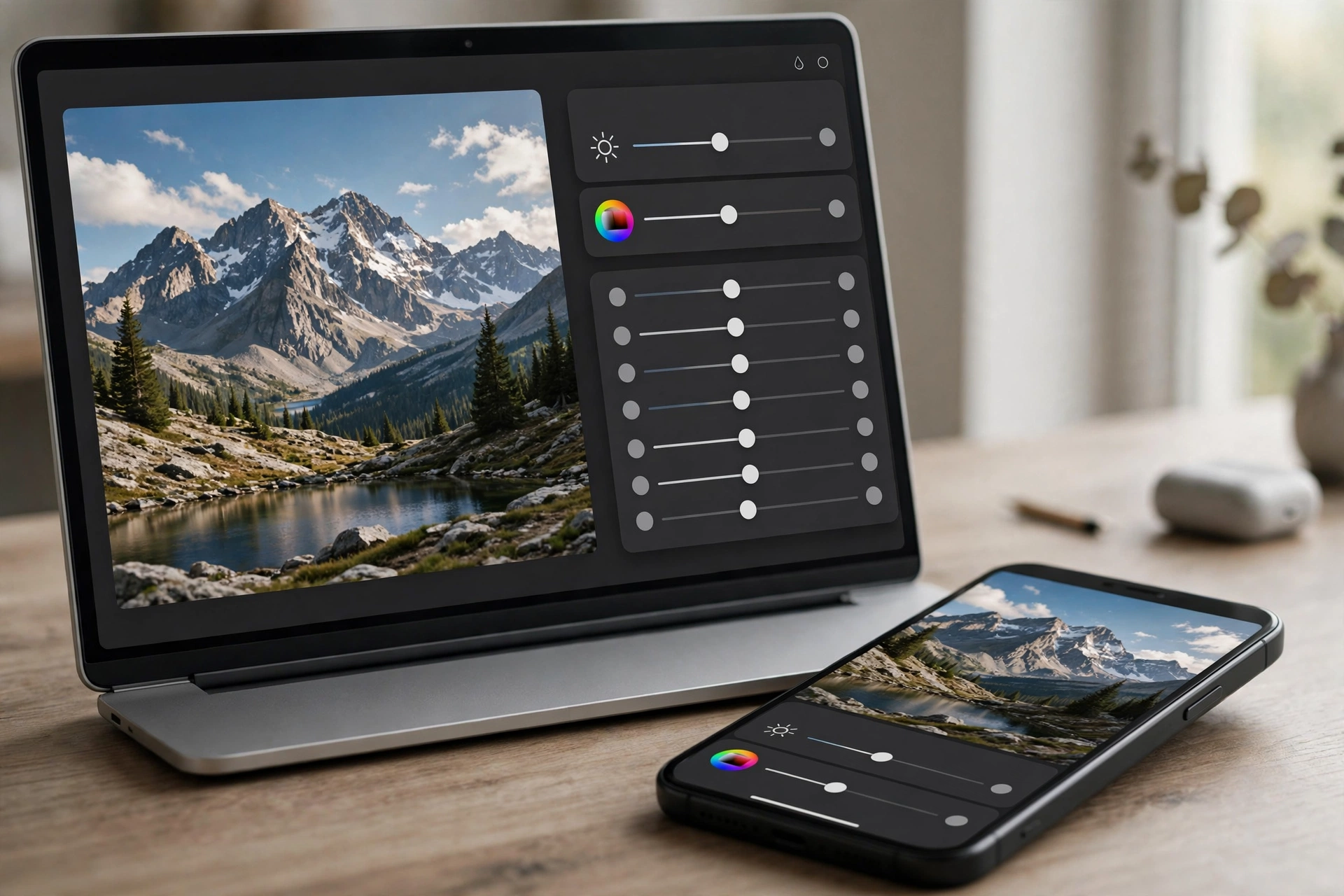
Lightroom vs Lightroom Classic: The Key Differences
This table covers the differences that actually matter in daily use:
| Lightroom (cloud) | Lightroom Classic | |
|---|---|---|
| Runs on | Windows, macOS, iOS, Android, web browser | Windows and macOS only |
| Photo storage | Adobe cloud (1TB included in the plan) | Your own hard drives |
| Organization | Albums, automatic AI keyword tagging | Catalogs, folders, collections, full manual control |
| Interface | Modern and simplified | Traditional, dense with options |
| Tethered shooting | No | Yes |
| Print, Book, Slideshow, Web modules | No | Yes |
| Third-party plugins | No | Yes |
| Full IPTC metadata | Limited | Yes |
| Mobile editing | Full apps for phone and tablet | None |
| Community recommended presets | Yes | No |
| Editing engine | The same — edits look identical in both | |
| AI masking and Denoise | Yes | Yes |
Storage Is the Biggest Difference
The single most important difference in the lightroom vs lightroom classic debate is where your photos live. The cloud Lightroom uploads your originals — including RAW files — to Adobe’s servers. That means you can start editing a photo on your laptop and finish it on your phone without moving any files, and your library is automatically backed up off-site.
Lightroom Classic keeps everything on drives you own. You decide the folder structure, you control the backups, and you never wait for a huge RAW library to upload. The trade-off is that you are fully responsible for backup: if your only drive fails and you have no copy elsewhere, your photos are gone. Photographers with tens of thousands of RAW files often prefer Classic precisely because local NVMe drives are faster and cheaper than cloud storage at that scale.
What Only Lightroom Classic Can Do
Classic remains the power user’s tool. Exclusive or meaningfully deeper capabilities include:
- Tethered capture — connect your camera and watch photos appear as you shoot, with support for Canon, Nikon, Sony, Leica, and Fujifilm cameras.
- Print, Book, Slideshow, and Web modules — including soft-proofing, which previews how colors will render on a specific printer’s profile.
- Full IPTC metadata — creator credits, copyright notices, and usage rights fields that editorial, news, and stock photographers cannot work without.
- Third-party plugins — publishing integrations and specialized tools that the cloud app’s fixed feature set cannot match.
- Finer editing control — a draggable histogram, curves with built-in sliders, and a movable 100% detail loupe for judging sharpness.
- A deeper import dialog — apply presets on import, set destinations, add keywords, and adjust metadata before a single file lands in your catalog.
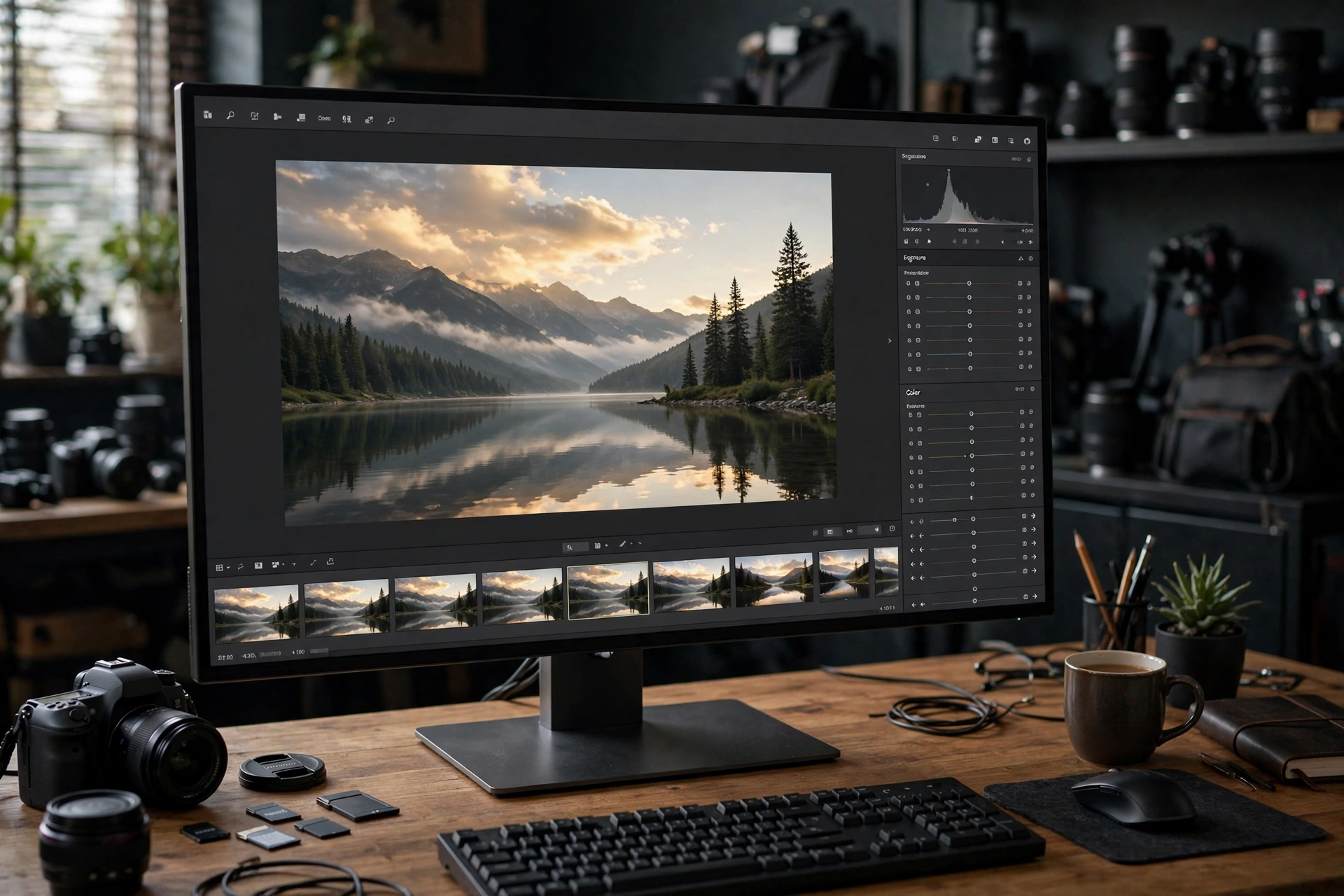
What Only the Cloud Lightroom Can Do
The cloud version wins on mobility and simplicity:
- Real mobile and web apps — full editing on your phone, tablet, or any browser, with every edit synced everywhere.
- Automatic cloud backup — originals are safely stored on Adobe’s servers the moment they upload.
- AI auto-tagging — search for “dog,” “beach,” or “birthday” and find photos you never keyworded manually.
- Community Recommended Presets — preset ideas from other photographers built right into the app.
- Gentler learning curve — larger sliders, hover tooltips that explain what each adjustment does, and fewer panels to get lost in.
Can You Use Both Together?
Yes — and many photographers do. Adobe’s Photography plan includes Lightroom, Lightroom Classic, and Photoshop together (pricing varies by region, so check Adobe’s site for your country). A common hybrid workflow is keeping the master library in Classic while syncing selected collections to the cloud as Smart Previews. Those previews do not count against your cloud storage quota, and you can edit them on your phone while traveling, with the changes syncing back to the Classic catalog. Adobe’s official comparison page documents exactly which features differ if you want the fine print.
Which One Should You Choose?
Be honest about how you actually work, then match the app to it:
- You edit mostly on your phone or tablet → Lightroom (cloud). Classic does not run on mobile at all, so there is no decision to make here.
- You shoot studio sessions, weddings, or large RAW batches → Lightroom Classic, for tethering, batch speed, and local control.
- You print your work or design photo books → Lightroom Classic, for the Print and Book modules.
- You travel or switch devices constantly → Lightroom (cloud), for seamless sync.
- You are just starting out → Lightroom (cloud), for the simpler interface.
- You file photos for news, editorial, or stock agencies → Lightroom Classic, for full IPTC metadata and plugins.
A Note for Lightroom Mobile and Mod APK Users
If you edit on Android — with the free Lightroom mobile app or a modified APK — you are already using the cloud Lightroom family. This matters because misleading download sites sometimes advertise a “Lightroom Classic APK.” There is no such thing: Lightroom Classic is desktop-only software for Windows and macOS and cannot be installed on a phone. Any site offering it for Android is not offering the real thing.
The good news: presets work in both versions. Modern XMP presets install in the cloud Lightroom and in Classic alike, so a preset pack you download for your phone will also work if you later move to the desktop. If you want free presets to experiment with, browse our free Lightroom presets collection and follow our guide on how to import presets in Lightroom.
Lightroom vs Lightroom Classic: FAQ
Is Lightroom Classic discontinued?
No. Adobe continues to develop both apps, and Classic received new AI features in its 2026 updates. It is not a legacy product.
Is Lightroom Classic free?
No — it is subscription software for desktop. The mobile Lightroom app does have a free tier with optional in-app purchases, which is a separate thing from Classic.
Do presets work in both versions?
Yes. Current XMP-format presets work in both the cloud Lightroom and Lightroom Classic, on desktop and mobile.
Which is better for beginners?
The cloud Lightroom. Its simplified interface, tooltips, and automatic organization make the first month far less intimidating, while the editing results are the same.
The Bottom Line
Neither app is objectively “better” — they are built for different workflows. Choose the cloud Lightroom if you live on multiple devices and want your photos everywhere without thinking about files. Choose Lightroom Classic if you are a desktop-first photographer who wants maximum control over storage, metadata, printing, and batch work. And if you are still unsure, remember the Photography plan includes both: start with the one that matches your main device, and the other will be there when your workflow grows. For the authoritative feature-by-feature list, see Adobe’s official Lightroom vs. Lightroom Classic comparison.


One Comment