How to Import Photos in Lightroom (2026): Mobile, Desktop & Classic
Learning how to import photos in Lightroom is the first step before any editing can happen, and it works differently depending on which Lightroom you open. On mobile and in the cloud-based desktop app, importing adds photos to your library and syncs them across devices. In Lightroom Classic, it registers photos in a catalogue and decides whether files are copied, moved, or left where they are. This guide covers all three, so you can import once, in the right place, and avoid duplicates.
First, Know Which Lightroom You Are Using
Adobe uses one name for three different apps, and their import steps are not the same. Check the table before you follow any steps, because the Classic steps will not match the mobile app.
| App | Where photos live | How you import |
|---|---|---|
| Lightroom mobile (Android / iOS) | Lightroom library, synced to the cloud | Add Photos from your device gallery or camera roll |
| Lightroom desktop (cloud-based, no “Classic” in the name) | Adobe cloud, synced to mobile and web | Add Photos from your computer or a connected drive |
| Lightroom Classic (desktop) | A catalogue on your computer; originals stay local unless you sync a collection | Import window in the Library module, with Copy, Add, or Move |
Do not import the same shoot into both Classic and the cloud app — that creates two separate libraries. Pick one app as your main library.
How to Import Photos in Lightroom Mobile (Android and iOS)
- Open Lightroom on your phone and sign in with your Adobe ID.
- Make sure you are on the Lightroom tab at the bottom of the screen, not the Device or Gallery tab.
- Tap the add button (usually a + icon or “Add Photos”) and choose photos from your device.
- Browse an album such as Recents or Favourites, then tap photos to select them. Swipe across thumbnails to select several at once.
- Tap Import. You can import into your Lightroom library, or import and add the photos straight into an album.
Photos already in Lightroom show a small “Lr” badge in the device view, so you can skip them. Photos shot with the Lightroom camera inside the app are already in your library — nothing extra to import. Two tips: grant photo permission when asked, or the gallery will look empty; and import over Wi-Fi when you can, since RAW files and large batches use a lot of mobile data while syncing.
How to Import Photos in Lightroom Desktop (Cloud-Based App)
The cloud-based desktop app is simpler than Classic: no catalogue file to manage, and imported photos appear on your phone and on the web automatically.
- Open Lightroom on your computer and check the top-left of the Photos panel. Keep Cloud selected if you want the photos synced; choose Local only if you want to work with files on your hard drive without uploading them.
- Click + Add Photos in the upper left.
- Browse your computer or a connected drive and select the images or folders you want.
- Click Review for Import, uncheck anything you do not want, then click Add Photos.
How to Import Photos in Lightroom Classic (Desktop)
Classic gives you the most control. Work through the Import window from left to right.
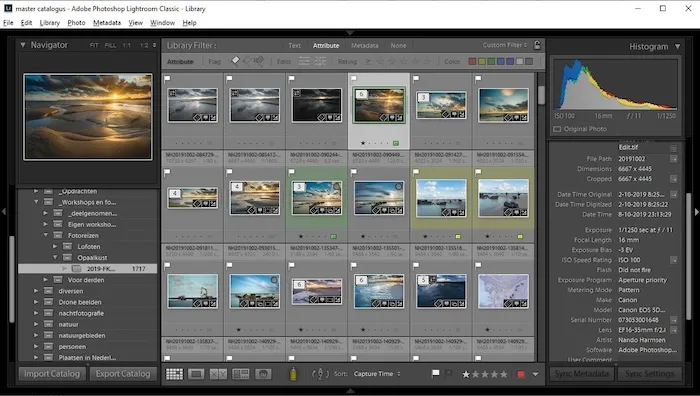
- Go to the Library module and click Import in the lower-left corner. If you cannot see the button, you are not in the Library module.
- In the Source panel on the left, select where the photos are: a memory card, a camera connected by USB, or a folder on your computer.
- At the top centre, choose Copy, Move, or Add (explained below). Copy as DNG also converts RAW files to DNG during import.
- On the right, set Destination, folder organisation, file renaming, and which previews Lightroom builds.
- Tick Don’t Import Suspected Duplicates if it is offered for your source — it stops Lightroom importing the same file twice.
- Click Import at the bottom right. Lightroom returns to the Library module with your new photos selected.
Let Lightroom finish building previews before you start rating or editing — editing mid-import feels slow, and that is not a fault with your computer.
Copy, Add, or Move: Which Should You Choose?
This choice only appears in Classic, but it decides where your original files end up.
| Option | What happens to the files | Use it when |
|---|---|---|
| Copy | Files are copied to a new folder you choose; the originals stay where they were | Importing from a memory card or camera — this is the safe default |
| Add | Files stay exactly where they are; only the catalogue references them | Photos are already organised in folders on your computer and you do not want to move them |
| Move | Files are moved to a new folder; the old copies are removed | You are consolidating a messy folder into your photo library and you have a backup |
For a memory card, always use Copy. Check the imported photos in Lightroom before formatting the card — a failed copy plus a formatted card can cost you photos.
Importing RAW Photos and Photos From a Camera Card
RAW import follows the same steps, with two extra checks. First, confirm your camera’s RAW format is supported by your Lightroom version — very new cameras sometimes need a Lightroom update first. Second, if a RAW file will not open, converting it to DNG with Adobe’s free DNG Converter and importing the DNG is a reliable workaround. Our guide to RAW files not opening in Lightroom covers camera support, ARW, CR3 and NEF files, and the mobile RAW limits in detail.
From a card reader, Classic offers Copy with a Destination folder. On mobile, card photos usually arrive via your phone’s Files or Photos app first, then you import them from the device gallery. Import very large cards in batches.
After Import: Organise Before You Edit
After every import, put the new photos into an album named by shoot and date, for example “Beach — October 2026” (or a collection in Classic), and flag your best photos on a first quick pass.
Once the photos are in, editing the whole shoot at once is much faster than editing one by one. Our batch editing guide shows how to edit one photo, then apply the same look to the rest of the shoot in Classic, desktop, and mobile.
Import Problems and How to Fix Them
| Problem | Likely cause and fix |
|---|---|
| Photos do not appear after import | Check the album or collection you imported into, not All Photos in a different sort order. On mobile, wait for sync to finish and check your connection. |
| Some photos are greyed out and cannot be selected | Lightroom thinks they are already in the catalogue. Check “Don’t Import Suspected Duplicates”, or search the catalogue for the file name first. |
| Import button is missing in Classic | You are not in the Library module. Switch to Library first; the button sits in the lower-left corner there. |
| RAW files import but will not open | Your camera model may need a newer Lightroom version, or the DNG Converter workaround. See the RAW guide linked above. |
| Import stops or runs very slowly | A full drive, a failing card reader, or very large RAW files. Free disk space, try another reader or cable, and import in smaller batches. |
| Mobile import says storage is full | Your cloud storage or the phone itself may be full. Free phone storage first, then check Adobe cloud storage before retrying. |
Frequently Asked Questions
How do I import photos from my camera roll into Lightroom?
On mobile, open Lightroom, tap Add Photos, pick photos from your device gallery, and tap Import. Photos already in Lightroom show an Lr badge.
Does Lightroom copy or move my photos when I import?
It depends on the app. Mobile and the cloud desktop app add photos to your Lightroom library and sync them. Classic asks you: Copy duplicates them to a folder you choose, Add leaves them where they are, and Move relocates them.
Why are my imported photos not showing in Lightroom?
Usually they are in a different album, collection, or sort order, or sync has not finished on mobile. Check the album you imported into, then your connection.
Can I import photos into Lightroom without a subscription?
Importing and basic editing in the mobile app do not require a paid plan, but cloud sync and storage, and some premium tools, are tied to a Creative Cloud plan. Classic works with your own files and folders.
What is the best way to import a large shoot?
Import from the card with Copy into one dated folder (Classic), or one album (mobile and cloud desktop), in batches if the shoot is large. Check the import before formatting the card.
Import once, into the right app, with Copy when a card is involved — and the rest of Lightroom gets noticeably easier. Adobe’s Classic import guide covers the Library import window in full.