How to Remove Red Eye in Lightroom (2026): Classic & Mobile
Learning how to remove red eye in Lightroom takes less than a minute once you know which tool your version actually has. Lightroom Classic has a dedicated Red Eye Correction tool that fixes a red pupil in two clicks. Lightroom on mobile and the cloud desktop app do not have that same one-click tool, so you fix red eye there with a masking brush instead. This guide covers both routes, plus pet eye.
What Causes Red Eye?
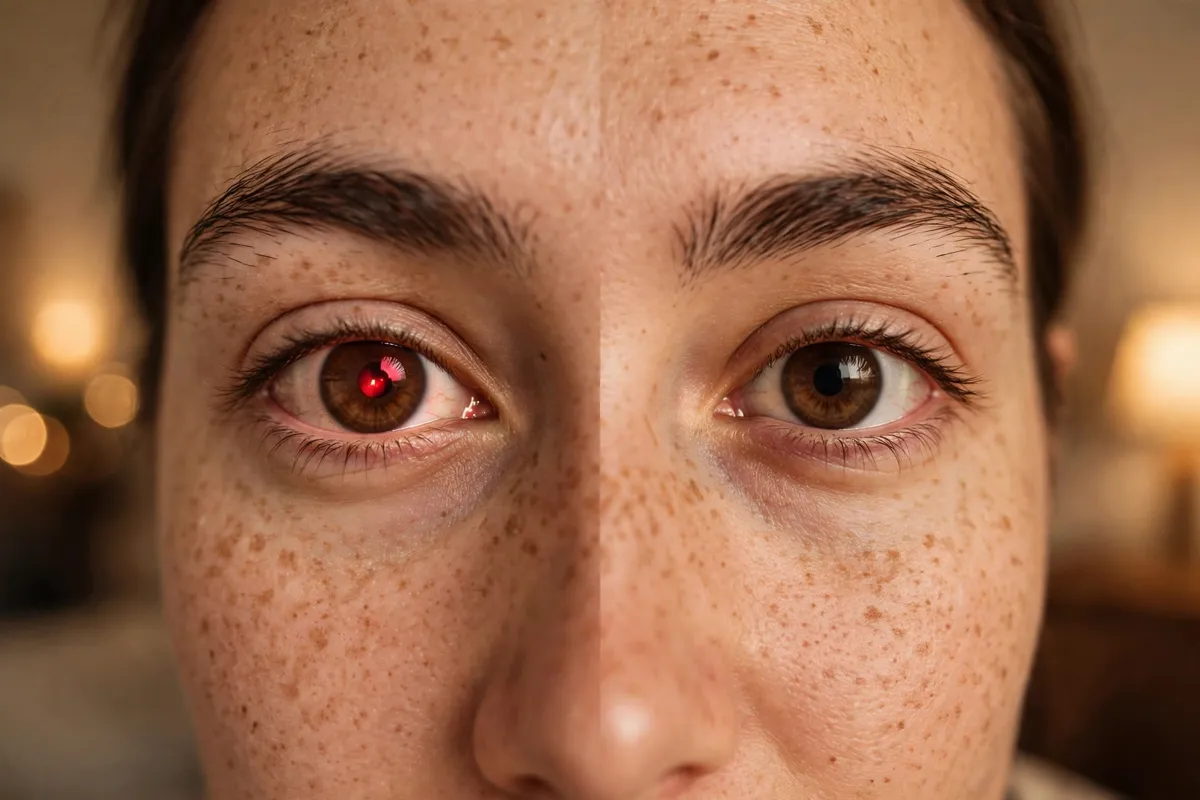
Red eye happens when a camera flash fires in a dark room. Your subject’s pupils are wide open to let in light, the flash bounces off the blood-rich retina at the back of the eye, and that red reflection travels straight back into the lens. It is most common with on-camera flash, phone flash, and compact cameras, because the flash sits very close to the lens. The darker the room and the closer the subject, the worse it looks — and it explains why sometimes only one eye looks red, since the flash angle to each eye is slightly different.
Quick Answer: Which Method for Your Lightroom?
| Your Lightroom | Red eye method | Speed |
|---|---|---|
| Lightroom Classic (desktop) | Dedicated Red Eye Correction tool | Fastest — click and drag per eye |
| Lightroom mobile (iPhone / Android) | Masking brush workaround (no dedicated tool) | A few minutes per photo |
| Lightroom desktop (cloud app) | Masking brush workaround, same as mobile | A few minutes per photo |
| Pet photos (any version) | Pet Eye mode in Classic; masking on mobile | Same as above |
How to Remove Red Eye in Lightroom Classic
Classic is the only version with a purpose-built tool, and it is genuinely quick. Work on one eye at a time.
- Open the photo in the Develop module. Press D, then zoom in to 1:1 or 2:1 using the Navigator panel so you can see the pupil clearly.
- Select the Red Eye Correction tool. You will find it in the toolbar under the histogram in the Develop panel — it looks like a small eye icon. Make sure Red Eye (not Pet Eye) is selected.
- Click in the centre of the red pupil and drag outward until the circle covers the whole eye, not just the red dot. Lightroom detects the pupil inside that area and darkens it.
- Fine-tune with the two sliders. Pupil Size controls how much of the eye is corrected — drag it right if red is still showing at the edges. Darken controls how dark the corrected pupil looks — drag it left if the eye looks grey or unnaturally black.
- Repeat for the other eye, then zoom out and check the photo at normal size. A correction that looks perfect at 2:1 can look too dark at full view.
If the circle lands off-centre, drag inside it to reposition it, or drag its edge to resize it. If the correction misses entirely, delete that correction pin and draw the circle again, a little larger. Do not draw one huge circle across both eyes — each eye needs its own correction. Adobe’s own guide to the tool, Red eye and pet eye correction, shows the same click-and-drag steps.
Removing Pet Eye in Classic
Animal eyes glow yellow or green instead of red, because animals have a reflective layer behind the retina called the tapetum lucidum. In the same Red Eye Correction tool, switch the mode to Pet Eye before you click and drag. It works the same way, but it targets the yellow-green reflection. For very strong glows, add a little extra Darken.
How to Remove Red Eye in Lightroom Mobile
Lightroom mobile has no dedicated red eye button — this is the single biggest gap in the app, and the reason many mobile guides skip straight to another app. But you can get a clean result with the masking brush. It takes longer than Classic, but it works entirely inside Lightroom.
- Open the photo and tap the Masking icon (the dotted circle), then tap the + and choose Brush.
- Zoom in on the eye and paint carefully over just the red pupil. Keep the brush small so you paint only the pupil, not the iris or the white of the eye.
- Darken the pupil. With the mask active, lower Exposure slightly and pull Saturation all the way down. Red disappears when the colour is gone and the area is dark — the same two things Classic’s tool does automatically.
- Refine the edges. If the mask leaked onto the iris, erase that edge with the brush eraser or raise the feather to soften the transition.
- Repeat for the other eye with a second brush mask, so you can adjust each eye separately.
Two warnings. First, do not paint the whole eye black — a natural pupil still has a tiny bright catchlight. If your brush wipes that out, the eye looks dead, so paint around the catchlight. Second, check your work at normal zoom, not just zoomed in: a pupil that looks fine at 200% can look like a black hole at feed size.
A Faster Mobile Shortcut: Your Phone’s Own Photos App
If the photo lives on your phone and you only need a quick fix, both iPhone Photos and Google Photos have a built-in one-tap red eye tool. Fix it there first, then import the corrected photo into Lightroom for the rest of your edit. There is no prize for doing a slow job inside Lightroom when a one-tap fix exists elsewhere.
How to Remove Red Eye on Lightroom Desktop (Cloud App)
The cloud-based Lightroom desktop app follows the mobile pattern: no dedicated Red Eye Correction tool. Use the same masking-brush method as mobile — brush over the pupil, desaturate, and darken slightly. The larger screen and a mouse or pen make precise brushing easier than a fingertip.
5 Mistakes That Make Corrected Eyes Look Fake
- Darkening the whole eye. Only the pupil should go dark. If the iris turns black too, the eye looks painted on.
- Killing the catchlight. That tiny white sparkle is what makes an eye look alive. Protect it.
- Fixing one eye and forgetting the other. Even a faint red tint in the second eye stands out once the first is fixed.
- Over-darkening. A pupil darker than the subject’s other features looks wrong. Match the natural pupil, then stop.
- Syncing the correction across different photos. Eye positions change from frame to frame. A red eye correction copied to another photo lands in the wrong place — redo it per photo, even in a burst.
How to Prevent Red Eye Next Time
These habits cut it out at the source:
- Turn on red-eye reduction mode on your camera or phone flash. It fires a pre-flash that shrinks the pupils before the real flash.
- Raise the room light. Brighter rooms mean smaller pupils, which means less red reflection.
- Move the flash away from the lens. Bounce the flash off a ceiling or wall if your camera allows it — off-axis light cannot bounce straight back into the lens.
- Ask the subject to look slightly away from the lens rather than dead into it. Even a small angle change breaks the direct reflection path.
Frequently Asked Questions
Does Lightroom mobile have a red eye removal tool?
No. As of 2026, Lightroom mobile has no dedicated red eye tool — that tool exists only in Lightroom Classic. On mobile, use the masking brush method above, or fix the photo in iPhone Photos or Google Photos first and then import it into Lightroom.
Can I remove red eye in the free Lightroom app?
Yes, with the masking brush method. It needs patience rather than a paid feature: brush the pupil, desaturate it, and darken it slightly. The dedicated one-click tool is a Classic feature, not a mobile one, free or paid.
Why does red eye appear in only one eye?
Because the flash angle to each eye differs slightly: one eye can catch the direct retina reflection while the other does not. Always zoom in and check the second eye too.
Can I fix pet eye the same way?
In Classic, yes — switch the tool to Pet Eye mode. On mobile, use the same masking method, but expect yellow or green instead of red, and be ready to darken a little more, since the animal-eye glow is usually stronger.
Will removing red eye damage my original photo?
No. Lightroom edits are non-destructive, so the original stays untouched and you can undo a bad correction any time (see how to undo in Lightroom). The same per-photo caution applies as with batch editing in Lightroom: copy settings only when the framing matches.
Red eye looks like a big problem and fixes like a small one. In Classic it is two clicks per eye; on mobile it is a careful brush mask. Either way, protect the catchlight, match the natural pupil darkness, and check both eyes.