
Lightroom vs Alight Motion (2026): Photo vs Video Editing
Lightroom vs Alight Motion is not really a contest between two similar apps. Lightroom is a photo editor, built for still images. Alight Motion is a video and animation app, built for moving graphics. If you compare them feature by feature without that starting point, you will end up with a misleading winner. This guide compares them honestly, by the job each one is made to do, so you can pick the right tool — or use both together.
Lightroom vs Alight Motion at a Glance
The short answer is simple. Choose Lightroom when your final product is a photo. Choose Alight Motion when your final product is a video, an animation, or a motion graphic. Many creators need both, and that is normal: edit the photo first, then animate it.
| Feature | Lightroom | Alight Motion |
|---|---|---|
| Main job | Photo editing and organisation | Video editing and motion graphics |
| Best for | Portraits, landscapes, product and social photos | Reels, intros, animated text, GIFs and short videos |
| Key strength | Colour, light, presets and non-destructive edits | Keyframes, layers, effects and animation |
| RAW photo editing | Yes, a core strength | No, not a photo RAW editor |
| Batch editing | Yes, copy and paste edits across photos | No photo batch workflow |
| Animation | No timeline animation | Yes, keyframe animation is the point |
| Final output | Still image (JPEG and other photo formats) | Video or GIF |
| Learning curve | Easy to start, deep for advanced colour work | Easy for simple edits, steeper for complex animation |
What Lightroom Is For
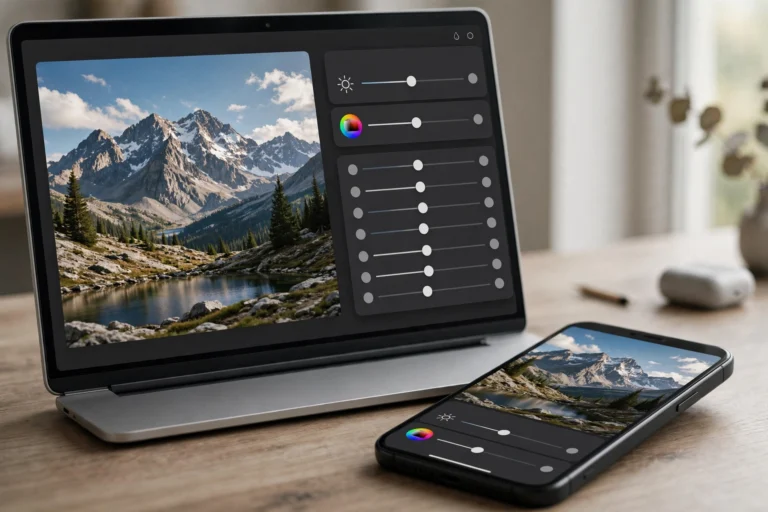
Lightroom is made for photographers. You import a photo, adjust exposure, colour, contrast and detail, and export a finished still image. Edits are non-destructive, which means your original photo stays untouched and you can change or undo any adjustment later. That matters when you are editing a whole set of photos from one shoot and want them to look consistent.
Its most useful tools for everyday creators are presets, masking and batch editing. A preset applies a saved look in one tap, and you can then fine-tune it. Masking lets you brighten just a face, darken just a sky, or add warmth to one part of the image. Batch editing lets you copy those adjustments to many photos at once, which saves a lot of time for Instagram feeds, product photos and client galleries.
Lightroom also handles RAW files, which carry far more image data than a JPEG. That gives you more room to recover shadows, fix white balance and rescue detail. If you shoot on a phone or camera in RAW, this is one of the clearest reasons to use Lightroom rather than a video app. Our step-by-step guide to how to import photos in Lightroom covers the mobile, desktop and Classic import options.
What Alight Motion Is For
Alight Motion is made for motion. You work on a timeline, stack layers of video, images, text and shapes, and animate them with keyframes. A keyframe marks a value at one point in time — for example, text at the left of the screen — and another keyframe later marks a different value, such as text at the right. The app fills in the movement between them.
That timeline approach is what makes it good for social video. You can animate titles, add transitions, apply visual effects, adjust speed, and layer music or sound over a clip. It also supports vector graphics, which stay sharp when scaled, and it can export finished work as video or as a GIF for sharing.
What it is not, however, is a photo editor. You can place a photo in a video project and apply basic colour adjustments, but you will not get Lightroom-level RAW editing, presets, masking or photo organisation. Judging Alight Motion as a photo editor, or Lightroom as a video editor, misses what each app was designed to do.
Photo Editing: Lightroom Wins Clearly
For any still-photo task, Lightroom is the right choice. Colour grading, exposure correction, white balance, lens correction, noise handling and detailed local edits are all photo-first tools. A preset workflow also means you can build a consistent style across dozens of photos, which is hard to do by editing each frame inside a video app.
Alight Motion can colour-correct a clip, but its photo tools are basic by comparison. If your goal is a sharper, better-coloured photograph to post, print or deliver to a client, start and finish in Lightroom.
Video and Animation: Alight Motion Wins Clearly
For any moving-image task, Alight Motion is the right choice. Keyframe animation, layered timelines, animated text, transitions and effects are its core features. Lightroom has no comparable animation timeline, so it cannot replace a video editor for reels, intros or motion graphics.
This is the same pattern as our Lightroom vs CapCut comparison: Lightroom owns the still photo, and the other app owns the video. The honest verdict is not one overall winner, but a winner for each job.
Pricing and Free Versions
Both apps are free to download, and both reserve their strongest features for paid plans. Lightroom mobile offers a useful set of free editing tools, while premium features such as advanced masking, batch tools and cloud sync options sit behind a subscription. Alight Motion likewise offers a free version, but free exports typically carry a watermark, and premium features and watermark-free exports require a subscription.
Prices, trial terms and exactly which features are paywalled change by region and over time, so check the current listing in your app store before you pay. As a rule, do not pay for either app until you have tested the free version on your own photos or videos and confirmed it does the job you bought it for.
Using Lightroom and Alight Motion Together
The strongest workflow for social creators uses both apps in sequence, and it is simpler than it sounds:
- Edit the photo in Lightroom. Fix exposure and colour, apply your preset, and export a high-quality JPEG.
- Import that finished photo into Alight Motion. Use it as a layer in your video project, not as a raw file to fix.
- Animate around it. Add animated text, transitions, effects and music on the timeline.
- Export the video. Choose the resolution and format your platform needs, and keep the Lightroom original for future reuse.
This order matters. Colour work is easier and more precise in Lightroom, and animation is only possible in Alight Motion. Doing the photo edit first also means every frame that uses that photo inherits the same clean, consistent look.
Which Should You Choose?
- Pick Lightroom only if you mainly post photos, build a photography portfolio, or edit product and portrait shots.
- Pick Alight Motion only if you mainly make reels, intros, animated posts or short videos and rarely need deep photo edits.
- Use both if you are a content creator who posts both photos and videos, or if your videos start from still images that need proper colour work first.
- Pick neither yet if you only need quick phone filters or simple video trimming — your phone’s built-in editor may already be enough.
There is no shame in using two specialised tools instead of one average one. Professional creators do this all the time: the right tool for the photo, and the right tool for the motion.
Frequently Asked Questions
Can Alight Motion replace Lightroom?
No. Alight Motion can place and lightly adjust a photo inside a video, but it is not a RAW photo editor and does not offer Lightroom’s presets, masking or batch photo workflow. For serious photo editing, you still need Lightroom or another photo editor.
Can Lightroom replace Alight Motion?
No. Lightroom is a photo editor with no animation timeline, keyframes or layered video editing. For reels, intros and motion graphics, you need a video app such as Alight Motion.
Can I use Lightroom photos in Alight Motion?
Yes, and this is the recommended workflow. Edit and export the photo in Lightroom first, then import the finished JPEG into Alight Motion as a layer in your video project.
Is Alight Motion free?
Alight Motion is free to download and try, but free exports usually include a watermark and some premium features are locked. Watermark-free exports and the full feature set require a paid plan, so check the current terms in your app store.
Is Lightroom free?
Lightroom mobile is free to download with a solid set of editing tools, but premium features require a subscription. Adobe’s own guide to editing photos in Lightroom is a good place to see what the editor itself can do before you decide on a plan.
The bottom line is simple: Lightroom vs Alight Motion is a photo tool against a video tool. Pick Lightroom for photos, Alight Motion for motion, and both together when your content needs a great-looking photo that moves.